
Restack someone else's Note
How to restack or quote another writer's Substack Note from WriteStack by pasting the Note's URL into the editor, which turns it into a quote card, then removing the link from your text.
To restack someone else's Note from WriteStack, copy the Note's URL from Substack and paste it into a WriteStack Note. WriteStack shows the Note as a card under your text, and it publishes on Substack as a restack with your words on top.
Auto-restack is a different feature: it restacks your own Notes later.
Steps
-
On Substack, open the Note you want to restack and copy its URL from the address bar. It looks like
https://substack.com/@handle/note/c-123456789.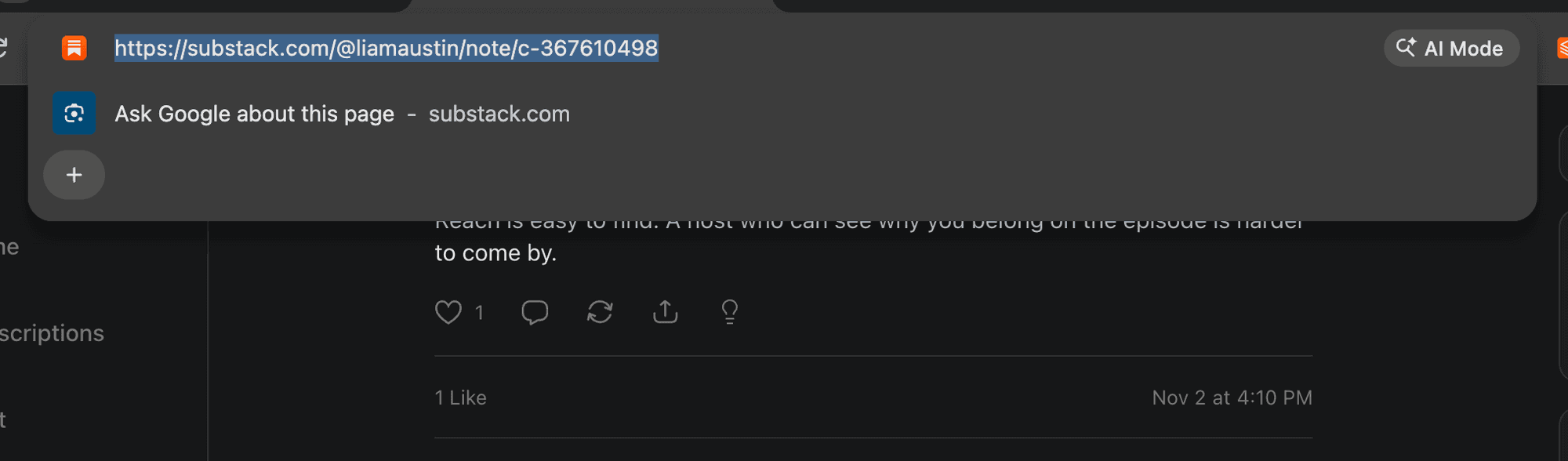
-
In WriteStack, open a new Note in the editor and paste the URL.
-
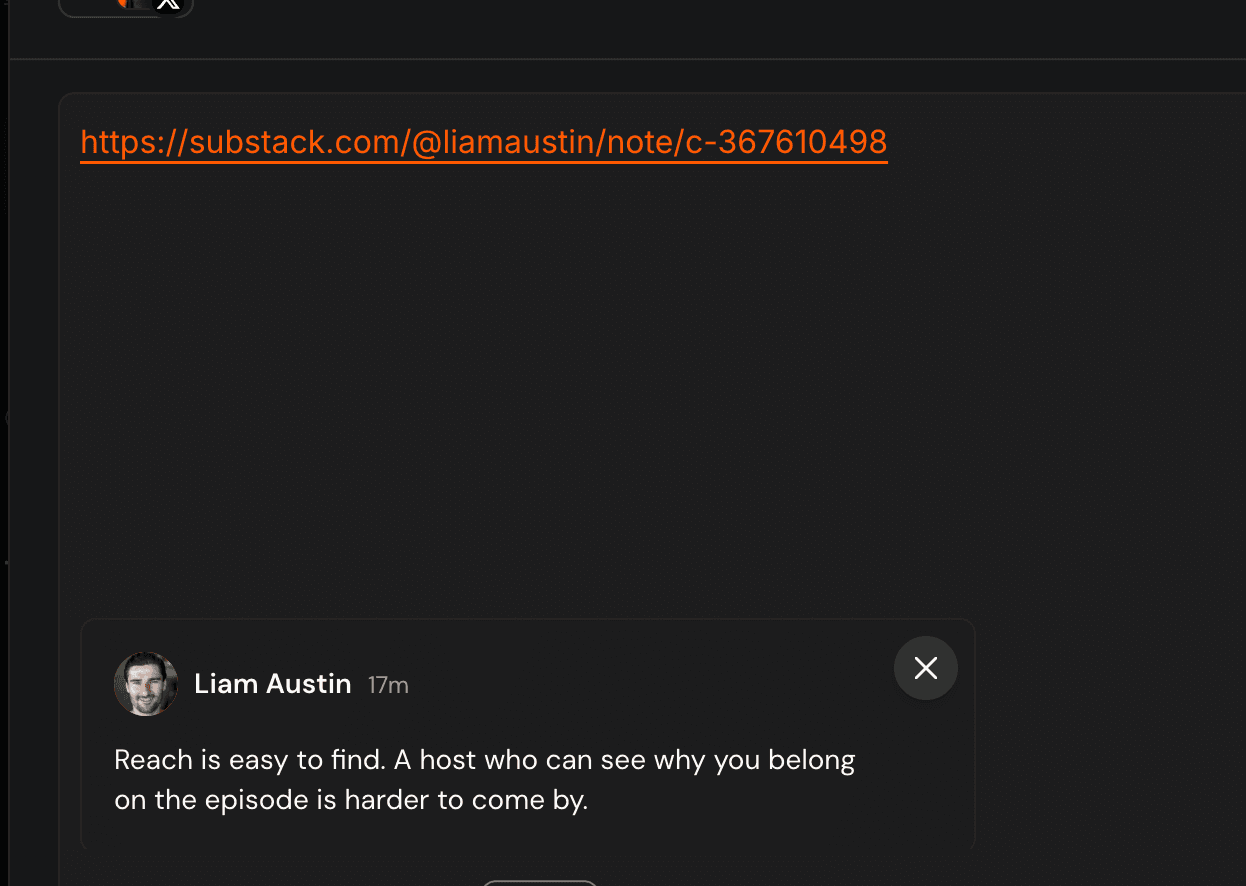
Wait a moment. WriteStack shows the other writer's Note as a card under the text, with their name, photo and words.
-
Hover the URL in your text and click Remove link from note text. The card stays; only the URL goes away.

-
Write your own comment above the card, or leave the text empty for a plain restack. Then publish or schedule the Note as usual.
Limits
| Item | Limit |
|---|---|
| Quoted Notes per Note | 1. It takes the Note's one link preview spot |
| Notes with a poll | Can't quote a Note |
To remove the card, hover it and click its remove (×) button.
If it doesn't work
| Problem | Fix |
|---|---|
| No card shows after pasting | Check the URL is a Note link (it has /note/c- in it), not a post link. Paste it again. |
| The URL is still in my published Note | You skipped step 4. Remove the link from the text before publishing. |
Auto-restack
How to make WriteStack restack your own Note 1 to 168 hours after it publishes, for one Note or as a default for all new Notes, the extension version it needs, and how to turn it off.
Weekly template
How to build your weekly posting template in WriteStack, including adding and editing times, picking days, reserving a time for tags or for untagged Notes, default cross-post channels on a time, and setting your timezone.