> All WriteStack docs in one file, except the per-tool MCP reference. For that, read https://docs.writestack.io/llms-mcp.txt.
# Introduction (/docs/using)
WriteStack helps you post Substack Notes consistently. You draft Notes in your voice, line them up on a weekly posting schedule, sync them to Substack, and then see which ones grew your audience.
## Pick your path [#pick-your-path]
The docs are split three ways. Start with the one that describes you.
} title="Using WriteStack" href="/docs/using/quickstart" description="Schedule Notes, sync to Substack, write articles, work with the Coach and read your analytics." />
} title="Account & billing" href="/docs/account" description="Plans and limits, trials, upgrades, cancelling, invoices, refunds and affiliates." />
} title="Build with WriteStack" href="/docs/build" description="Connect Claude, ChatGPT, Notion or your own agent over MCP. Full tool reference." />
## The main loop [#the-main-loop]
| Step | What you do | Where |
| --- | --- | --- |
| 1. Draft | Write a Note yourself, or have WriteStack draft it in your saved writing style. | **My Notes → New note** |
| 2. Queue | Add the Note to your queue. It takes the next free time on your weekly schedule. | Note editor → **Add to Queue** |
| 3. Sync | The browser extension schedules the Note on Substack. Substack publishes it at its time. | **My Notes → Scheduled notes** |
| 4. Measure | See impressions, engagement and new subscribers for each published Note. | **Notes Performance** |
The queue lives in WriteStack. A Note only reaches Substack once it is synced. Read [Sync](/docs/using/concepts/sync) to understand when that happens on its own and when you need to click the yellow button.
## Start here [#start-here]
} title="Schedule your first Note" href="/docs/using/quickstart" description="Sign up, connect Substack, queue a Note and confirm it posted." />
} title="Sync" href="/docs/using/concepts/sync" description="How Notes get from WriteStack to Substack, and why a Note didn't post." />
} title="Notes and the queue" href="/docs/using/concepts/notes-and-the-queue" description="Drafts, Ready, Scheduled, Published and Evergreen." />
} title="Tags and slots" href="/docs/using/concepts/tags-and-slots" description="Reserve posting times for certain kinds of Notes." />
## Main sections [#main-sections]
## For AI agents [#for-ai-agents]
- Index: [/llms.txt](/llms.txt). Every page in one file: [/llms-full.txt](/llms-full.txt).
- Any page as Markdown: add `.md` to its URL, or send `Accept: text/markdown`.
- MCP server: `https://www.writestack.io/api/mcp/mcp`. Setup is in [Build with WriteStack](/docs/build).
# Schedule your first Note (/docs/using/quickstart)
You need a WriteStack account, your Substack connected, and the browser extension installed on a computer. Then you write a Note, click **Add to Queue**, and check that it synced to Substack.
## Before you start [#before-you-start]
- A computer with a browser the extension supports (Chrome and other Chromium browsers, or Firefox). The extension does not run on a phone. See [Install the browser extension](/docs/using/setup/browser-extension).
- You are logged in to Substack in that browser, with the same account you connect to WriteStack.
## Steps [#steps]
1. **Sign up** at [writestack.io](https://writestack.io) and choose a plan. Plan limits are on [Plans and limits](/docs/account/plans-and-limits).
2. **Connect your Substack.** Follow [Connect your Substack](/docs/using/setup/connect-substack).
3. **Install the browser extension.** Follow [Install the browser extension](/docs/using/setup/browser-extension). WriteStack uses it to schedule Notes on Substack for you.
4. **Write a Note.** Go to **My Notes** and click **New note**. Write your Note, or see [Draft a Note](/docs/using/notes/drafting) to have WriteStack draft one in your voice.
5. **Add it to the queue.** In the note editor, leave **When: Next Available** selected and click **Add to Queue**. The button shows the time the Note will take.
- If you have no weekly posting times yet, **Add to Queue** asks you to pick a date and time instead. Set up your times on [Weekly template](/docs/using/schedule/weekly-template).
6. **Check it synced.** With WriteStack open on your computer, adding to the queue also schedules the Note on Substack through the extension. The editor shows **Synced** for a scheduled Note that is on Substack.
7. **Check the Scheduled notes tab.** Go to **My Notes → Scheduled notes**. If a yellow **Sync N scheduled notes to Substack** button shows, click it and keep WriteStack open until it finishes. See [Sync](/docs/using/concepts/sync).
## Confirm it posted [#confirm-it-posted]
After the scheduled time passes:
- The Note appears on your Substack profile.
- In WriteStack, it moves to **My Notes → Published notes**.
Once it has had time to collect views, its numbers show up in [Notes analytics](/docs/using/analytics/notes-analytics).
## If it doesn't work [#if-it-doesnt-work]
- The Note didn't post, or the yellow button keeps coming back: read [Sync](/docs/using/concepts/sync), then [Sync errors](/docs/using/troubleshooting/sync-errors).
- WriteStack says it can't reach Substack: see [Substack connection problems](/docs/using/troubleshooting/substack-connection).
- You hit a limit on scheduled Notes: see [Capacity](/docs/using/concepts/capacity).
# Notes and the queue (/docs/using/concepts/notes-and-the-queue)
Every Note in WriteStack has a status that says where it is on its way to Substack. The queue is the list of Notes that have a posting time.
## Note statuses [#note-statuses]
**My Notes** has one tab per status. The number in each tab is how many Notes it holds.
| Status | Tab in My Notes | What it means | Live on Substack? |
| --- | --- | --- | --- |
| `draft` | **Drafts** | A Note you are still working on. New and generated Notes start here. | No |
| `ready` | **Ready** | A finished Note waiting for a posting time. | No |
| `scheduled` | **Scheduled notes** | A Note with a posting time. This is the queue. | Not yet. It posts at its time once it is [synced](/docs/using/concepts/sync). |
| `published` | **Published notes** | A Note that went out on Substack. | Yes |
| `evergreen` | **Evergreen** | A Note set to repeat. The tab only shows when you have one. See [Evergreen Notes](/docs/using/notes/evergreen). | Each time it repeats |
The status names in the first column are the values the [MCP server](/docs/build) uses.
Nothing in **Drafts** or **Ready** posts on its own. A Note only goes out once it is scheduled and synced, or when you post it right away (choose **Now** in the note editor, then **Post Now**).
## The queue [#the-queue]
The queue is your Notes with a posting time, in time order. You see it in **My Notes → Scheduled notes** with the **Queue** view selected. **Kanban** and **Calendar** show the same Notes in other layouts.
Each day shows the times from your [weekly template](/docs/using/schedule/weekly-template). A time with no Note is an empty slot.
A Note joins the queue when you:
- click **Add to Queue** in the note editor. It takes the next free time that fits its tags. See [Tags and slots](/docs/using/concepts/tags-and-slots).
- pick **Set Date and Time** and choose an exact time.
- schedule several Notes at once from **Ready** or **Drafts**.
To move, remove or batch-schedule Notes, see [Manage the queue](/docs/using/schedule/queue).
## Limits [#limits]
| Rule | Value |
| --- | --- |
| Furthest ahead you can schedule | 90 days (Substack allows scheduling up to 3 months ahead) |
| Scheduled Notes at once | Depends on your plan. See [Capacity](/docs/using/concepts/capacity). |
## The queue is not Substack [#the-queue-is-not-substack]
The queue is stored in WriteStack. Substack only knows about a scheduled Note once it is synced. When you schedule from WriteStack on your computer, that usually happens right away. Notes scheduled from somewhere else, like an AI assistant or your phone, wait for you to sync. Read [Sync](/docs/using/concepts/sync).
# Tags and slots (/docs/using/concepts/tags-and-slots)
A slot is one posting time in your weekly template. Each slot either takes any Note, is reserved for Notes with certain tags, or takes only Notes without tags. When you queue a Note, WriteStack gives it the soonest slot that fits its tags.
## Words used here [#words-used-here]
| Term | Meaning |
| --- | --- |
| Weekly template | Your recurring posting times, for example Mon–Fri at 9:00 and 17:00. Set it on [Weekly template](/docs/using/schedule/weekly-template). |
| Slot | One time in the template on one day. |
| Tag | A label on a Note, like "Personal" or "Promo". In the tag picker they are called categories. See [Tags](/docs/using/notes/tags). |
| Open slot | A slot with no tags, set to **Any note**: "Tagged or untagged notes can land here". |
| Reserved slot | A slot with one or more tags. It waits for a Note that has one of those tags. |
| Untagged-only slot | A slot with no tags, set to **Only untagged notes**: "Notes with a tag skip this time". |
## Slot types [#slot-types]
You set this per slot under **Prefer notes tagged**. Leave the tags empty and choose who can use the slot, or pick tags to reserve it.
| Slot type | Untagged Note | Tagged Note |
| --- | --- | --- |
| Open (**Any note**) | Can land here | Can land here |
| Reserved for tags | Never lands here | Lands here only if it shares at least one tag |
| Untagged-only (**Only untagged notes**) | Can land here | Never lands here |
In the queue, a reserved slot is labelled "Reserved for" followed by its tag names, and an untagged-only slot is labelled "Reserved for untagged notes".
## How it works [#how-it-works]
When you click **Add to Queue** or schedule several Notes at once, each Note takes the first slot, in time order, that it is allowed to use:
1. **Tagged Note.** It takes whichever comes first: an open slot, or a reserved slot that shares one of its tags.
2. **Untagged Note.** It takes the first open or untagged-only slot. It skips reserved slots.
3. **Reserved slots stay empty** until a matching Note arrives. A Note with other tags does not fill them.
### OR matching [#or-matching]
A slot with several tags is OR, not AND. One shared tag is enough.
| Slot tags | Note tags | Can land? |
| --- | --- | --- |
| Personal, Promo | Promo | Yes |
| Personal, Promo | Personal, Tips | Yes |
| Personal, Promo | Tips | No |
| Personal, Promo | none | No |
### Examples [#examples]
- Your next slot is open at 9:00, and a slot reserved for "Promo" is at 12:00. A Note tagged Promo takes 9:00, because the open slot comes first.
- Your next slot is reserved for "Promo" at 9:00, and an open slot is at 12:00. A Note tagged Promo takes 9:00.
- The "Promo" slots are all full. A Note tagged Promo takes the next open slot.
## When no slot fits [#when-no-slot-fits]
| How you scheduled | What happens |
| --- | --- |
| **Add to Queue** on one Note | If no open or matching slot is free, the Note takes the next free slot of any kind, including reserved ones. If you have no weekly times at all, you pick a date and time instead. |
| Several Notes at once | Notes that fit nowhere are listed in a dialog titled "N notes have no matching queue time". Add a matching tag and click **Schedule with tags**, or click **Use next available times** to place them on the next free slots of any kind. |
| **Set Date and Time** | You choose the time yourself. Tags don't decide anything. |
## Slots with cross-post channels [#slots-with-cross-post-channels]
A slot can also have **Cross-post to** channels if you use [cross-posting](/docs/using/cross-posting). A Note that lands on that slot uses the slot's channels instead of the ones picked on the Note. The Note still posts to Substack.
The slot's channels are applied when a Note is scheduled onto it. Changing a slot's channels later doesn't change Notes already on it.
## See also [#see-also]
- [Weekly template](/docs/using/schedule/weekly-template): add, edit and delete slots.
- [Tags](/docs/using/notes/tags): create tags and add them to Notes.
- In the app, the **How does it work** link under a slot's settings shows a short version of this page.
# Capacity (/docs/using/concepts/capacity)
Your plan sets how many Notes can be scheduled at the same time. A slot frees up each time a scheduled Note publishes, so you can keep queueing as Notes go out.
## Limits per plan [#limits-per-plan]
| Plan | Notes scheduled at a time |
| --- | --- |
| Hobbyist | 20 |
| Standard | 100 |
| Enterprise | Unlimited |
The **Unlimited Schedules** add-on removes the limit on any plan. It is a one-time payment. Prices and how to buy it are on [Plans and limits](/docs/account/plans-and-limits).
{/* TODO(orel): Some older accounts may have a different stored limit (maxScheduledNotes on the account, and the pre-Dec-2025 plan table had Standard as unlimited). Should we mention that existing subscribers may keep an older limit? */}
## What counts [#what-counts]
A Note counts toward the limit when all of these are true:
- its status is scheduled,
- its posting time is in the future,
- it is [synced](/docs/using/concepts/sync) to Substack.
These don't count: drafts, Ready Notes, published Notes, and scheduled Notes that are not synced to Substack yet. Moving a Note that is already scheduled to another time doesn't use a new slot.
## When you reach the limit [#when-you-reach-the-limit]
| Where | What you see | What to do |
| --- | --- | --- |
| Scheduling a Note in WriteStack | A dialog titled **Schedule Limit Reached**: "You have reached your limit of N active schedules." | Wait for a scheduled Note to publish, remove one from the queue, upgrade, or buy **Unlimited Schedules**. |
| Syncing Notes that were scheduled elsewhere (for example by an AI assistant) | A dialog titled **You've reached your scheduling limit**. It shows how many Notes fit and how many don't. | Click the button to sync the ones that fit and move the rest to Ready. Click **Not now** to leave them as they are. |
When you sync past the limit, WriteStack syncs the earliest Notes first. The rest move to **Ready**. Nothing is deleted. Schedule them again once space frees up.
## For AI assistants [#for-ai-assistants]
An assistant connected through MCP can read your remaining capacity with `get_schedule_capacity` and should never schedule more than that. See [Build with WriteStack](/docs/build).
# Sync (/docs/using/concepts/sync)
Sync is the step where the WriteStack browser extension schedules your Note on Substack. Until a Note is synced, it exists only in your WriteStack queue and will not post. Once it is synced, Substack holds the scheduled Note and publishes it at its time.
## Why it's needed [#why-its-needed]
WriteStack schedules Notes from your own browser, through the extension, using the Substack account you are logged in to there. WriteStack's servers can't do this step for you. So a Note scheduled anywhere the extension isn't running has to be synced later from your computer.
## When it happens on its own [#when-it-happens-on-its-own]
| You schedule a Note from | Synced? |
| --- | --- |
| WriteStack on your computer, with the extension installed and Substack logged in | Yes, right away when you click **Add to Queue** or schedule it |
| The Coach in WriteStack on your computer | Yes, right away |
| An AI assistant connected through MCP (Claude, ChatGPT, Notion) | No. You sync it. |
| WriteStack on your phone | No. You sync it from a computer. |
| A ghostwriter working on your account | No. You sync it from your own computer. |
Editing a scheduled Note also needs a sync. The note editor shows "Not synced (click Sync to Substack or close the editor to sync)" until you click **Sync to Substack** or close the editor.
## The yellow Sync button [#the-yellow-sync-button]
When some scheduled Notes are not on Substack yet, a yellow button shows in **My Notes → Scheduled notes** (Queue view):
**Sync N scheduled notes to Substack**
### Steps [#steps]
1. Open WriteStack on a computer, in the browser where the extension is installed and you're logged in to Substack.
2. Go to **My Notes → Scheduled notes**.
3. Click **Sync N scheduled notes to Substack**.
4. Keep WriteStack open. The button reads "Syncing. Do not close WriteStack" with a counter until it is done. Large batches pause between groups because Substack limits how fast Notes can be scheduled.
5. When the button disappears, every scheduled Note is on Substack.
You can also sync one Note: in the queue, a Note that isn't synced shows a warning icon ("The schedule doesn't match a schedule on Substack. Click to sync the schedule to Substack."). Click the icon.
The yellow button only shows on wide screens. On a phone or a narrow window you won't see it.
If syncing would take you over your plan's limit, WriteStack asks what to do first. See [Capacity](/docs/using/concepts/capacity).
## After a Note is synced [#after-a-note-is-synced]
The Note is a scheduled Note on Substack. Substack publishes it at its time, so WriteStack doesn't need to be open then. After it goes out, WriteStack moves it to **Published notes**.
If you change or delete a scheduled Note directly on Substack, WriteStack's queue no longer matches. The **Last synced on** line above the queue has a **Sync now** link that checks Substack for changes and lets you review them. See [Schedule mismatch](/docs/using/troubleshooting/schedule-mismatch).
## If WriteStack isn't open [#if-writestack-isnt-open]
Nothing syncs. A Note that isn't synced stays in the WriteStack queue and won't post. If its time passes before you sync, it misses that time, and it no longer shows in the queue.
{/* TODO(orel): How should a writer recover a Note whose time passed before it was synced? It drops out of the queue view (past-scheduled rows are hidden) but keeps status scheduled. Is there a supported way to reschedule it? */}
## Why didn't my Note post? [#why-didnt-my-note-post]
Check these in order:
| Cause | How to tell | Fix |
| --- | --- | --- |
| It was never synced | It was scheduled by an AI assistant, on your phone, or by a ghostwriter, and nobody clicked the yellow button | Open WriteStack on your computer and sync before the posting time |
| The time passed before syncing | The Note is gone from the queue but not in **Published notes** | Schedule it again, then sync |
| You edited it and didn't re-sync | The editor showed "Not synced" | Open the Note and click **Sync to Substack** |
| The extension isn't installed or is off | WriteStack asks you to install the extension when you schedule | [Install the browser extension](/docs/using/setup/browser-extension) |
| Logged out of Substack, or logged in to a different Substack account | Sync fails | Log in to Substack with the account connected to WriteStack. See [Substack connection problems](/docs/using/troubleshooting/substack-connection). |
| You hit your scheduling limit | The scheduling limit dialog opened and some Notes moved to Ready | See [Capacity](/docs/using/concepts/capacity) |
| The Note was changed or deleted on Substack | The queue shows changes from Substack | See [Schedule mismatch](/docs/using/troubleshooting/schedule-mismatch) |
| The posting time was more than 90 days out | Scheduling was refused: "Substack allows scheduling up to 3 months ahead" | Pick a time within 3 months |
Still stuck? See [Sync errors](/docs/using/troubleshooting/sync-errors) or [contact support](/docs/using/support).
# Writing style (/docs/using/concepts/writing-style)
Your writing style is what WriteStack knows about how you write: who you are, what you write about, and how your Notes usually sound. WriteStack builds it from your publication and your Notes, and every AI draft uses it so the text sounds like you.
## What it's made of [#what-its-made-of]
| Part | Where it comes from | Can you edit it? |
| --- | --- | --- |
| **Generated Description** | WriteStack's analysis of your publication: what you do and your writing style | Yes |
| **Personal Prompt** | Instructions you write yourself, like words to avoid or how to format | Yes |
| **Preferred Topics** | The topics you write about | Yes |
| Notes style | How your Notes are usually built and the themes they cover, learned from your top Notes | No |
| **What the AI learned** | Patterns from your recent Notes, plus writing rules from your edits and reactions | No, it updates on its own |
## Where to see and edit it [#where-to-see-and-edit-it]
1. Go to **Settings → AI Settings**.
2. Edit **Generated Description**, **Personal Prompt** or **Preferred Topics**.
3. Click **Save Preferences**.
Tips from the app:
- **Generated Description**: "Avoid changing the structure of the description to ensure high quality content generation."
- **Personal Prompt** is used alongside the generated description. Click **Browse Prompt Library** for ready-made instructions you can add.
You need a connected publication to see these fields. Without one, AI Settings shows "No publication connected". See [Connect your Substack](/docs/using/setup/connect-substack).
## What the AI learned [#what-the-ai-learned]
Below your preferences, **What the AI learned** shows "Patterns from your notes that the next generation follows". It studies your Notes from the last 180 days and lists:
| Pattern | Examples |
| --- | --- |
| Opener | Question, Confession, Contrarian, Number |
| Length | Micro, Short, Sweet spot, Story, Long |
| Ending | Fork in the road, Statement, Generic question, Link |
| Topics | Your topics and how they perform compared to usual |
Writing rules appear after five edits, likes, dislikes or skipped drafts. Before that, the card says so.
## How it's used [#how-its-used]
- **Drafting Notes.** When WriteStack generates Notes for you, it writes from your description, your Personal Prompt and your Notes style. See [Draft a Note](/docs/using/notes/drafting).
- **The Coach.** Quill reads your writing style before drafting in your voice. See [The Coach](/docs/using/concepts/the-coach).
- **AI assistants.** A client connected through MCP can read it with `get_writing_style` and should do so before writing Notes for you. See [Build with WriteStack](/docs/build).
If drafts don't sound like you, start with the **Personal Prompt**. It is the part you control most directly.
# The Coach (/docs/using/concepts/the-coach)
The Coach is Quill, a writing coach inside WriteStack. It's a chat that already knows your publication, so you can ask it to draft Notes in your voice, fill your queue, or explain your numbers.
Open it from **Coach** in the sidebar.
## What it knows [#what-it-knows]
- Your Notes, posts, posting schedule and stats.
- Your [writing style](/docs/using/concepts/writing-style).
- The Writing Edge knowledge base.
- Its own Memory of you, and anything you add to its Library (links, pasted text, PDFs).
Memory and Library stay private to your account.
## What it does without asking, and what it doesn't [#what-it-does-without-asking-and-what-it-doesnt]
| Action | Needs your approval? |
| --- | --- |
| Draft Notes as cards you can edit | No |
| Schedule Notes | Yes |
| Post a Note or an article on its own | It never does |
When you approve scheduling in the Coach on your computer, the extension schedules the Notes on Substack right away. See [Sync](/docs/using/concepts/sync).
## Usage [#usage]
Every paid plan includes the Coach, with a weekly usage allowance that resets every Monday. The amount per plan is on [Coach limits](/docs/using/coach/limits).
## Learn more [#learn-more]
- [What the Coach does](/docs/using/coach/what-it-does)
- [Approvals](/docs/using/coach/approvals)
- [Coach limits](/docs/using/coach/limits)
# Connect your Substack (/docs/using/setup/connect-substack)
You connect Substack in two parts. During onboarding you paste your Substack profile URL so WriteStack can read your public profile, posts and Notes. Then the [browser extension](/docs/using/setup/browser-extension) uses the Substack login in your browser to schedule and post Notes for you. WriteStack never asks for your Substack password.
## Steps [#steps]
1. Log in to Substack in the browser you'll use for WriteStack, with the account that owns your publication.
2. Find your profile URL: go to [substack.com](https://substack.com/), click **Profile** (bottom left) and copy the URL from the address bar. It looks like `www.substack.com/@your-handle`.
3. In WriteStack onboarding, paste the URL and click **Continue**.
4. On **Is this you?**, confirm your author profile and click **Continue**.
5. On **Select your publication**, pick the newsletter you want to connect and click **Continue**. If you write on only one publication, it's selected for you.
6. Wait for the analysis to finish. You'll see steps such as "Checking your publication", "Reading some of your posts", "Reading some of your notes" and "Analyzing your writing style".
7. Finish the rest of onboarding, including **Install the Chrome extension**. You can click **Continue without extension** and install it later, but you need it to post to Substack.
Connect the publication of the Substack account you're logged in to. The onboarding screen says it too: "Make sure to connect the publication you're logged into to be able to use all the features." The extension posts as whichever Substack account is logged in in that browser.
## What WriteStack reads [#what-writestack-reads]
| Source | What | Used for |
| --- | --- | --- |
| Your profile URL (onboarding) | Your public Substack profile, the publications you write for, some of your posts and Notes | Your author profile, writing style and the AI settings that make generated Notes sound like you |
| The browser extension | Your Substack session in that browser | Scheduling and posting Notes, fetching Notes stats and other Substack actions you start in WriteStack |
## One publication per account [#one-publication-per-account]
Each WriteStack account connects one publication. **Settings → Publication Settings** shows it as "The newsletter connected to this account". If your Substack profile has no publication, onboarding says "No publications found. You can continue without selecting a publication." and you can continue with just your profile.
## Change the publication [#change-the-publication]
1. Go to **Settings → Publication Settings**.
2. Click **Change Publication**.
3. Read the dialog and click **Continue to Onboarding**.
4. Enter your newsletter URL again and finish the setup. The analysis can take a few minutes.
If no publication is connected, the button reads **Set Up Publication** instead.
## Disconnect [#disconnect]
There is no separate disconnect button for Substack. To stop WriteStack from acting on Substack, remove or turn off the browser extension, or log out of Substack in that browser. To remove your data, delete your WriteStack account. See [Account & billing](/docs/account).
{/* TODO(orel): confirm the account-deletion path and link the right account page once it exists. */}
## If it doesn't work [#if-it-doesnt-work]
See [Substack connection problems](/docs/using/troubleshooting/substack-connection).
# Add yourself as an author (/docs/using/setup/add-byline)
WriteStack finds your publication through the posts you're credited on. If none of your posts list you as an author, onboarding shows "It seems like none of your posts include you as an author." Add your byline to at least one post, then try again.
## Steps [#steps]
1. Log in to Substack and open your publication's **Dashboard**.
2. Click **Posts**.
3. Next to your latest post, click the **⋯** menu and choose **Edit**.
4. In the editor, click **Add byline** and choose yourself.
5. Click **Update** (top right), then **Update now**.
6. Go back to WriteStack onboarding and paste your profile URL again. See [Connect your Substack](/docs/using/setup/connect-substack).
Substack's editor changes from time to time. If a button looks different, look for the byline or author field at the top of the post.
## Good to know [#good-to-know]
- Published posts and drafts both work.
- You can remove the byline after signup the same way: open the post, click the **x** next to your name, and update.
# Install the browser extension (/docs/using/setup/browser-extension)
The WriteStack extension connects WriteStack to Substack through your browser. You need it to schedule Notes on Substack, post them and sync stats. Install it on a computer from [writestack.io/extension](https://writestack.io/extension), which opens the right store for your browser.
## Steps [#steps]
1. On a computer, open [writestack.io/extension](https://writestack.io/extension).
- Chrome and other Chromium browsers: [Chrome Web Store](https://chromewebstore.google.com/detail/writestack/emdlbnkhjpfcooclfbodmhkhkohcjaoa)
- Firefox: [Firefox Add-ons](https://addons.mozilla.org/en-US/firefox/addon/writestack/)
2. Click **Add to Chrome** (or **Add to Firefox**) and accept the permissions.
3. Make sure you're logged in to Substack in the same browser.
4. Go back to WriteStack and refresh the page. During onboarding, click **I have installed the extension** instead.
If WriteStack needs the extension and can't find it, you'll see a **Chrome Extension Required** (or **Firefox Extension Required**) dialog. Click **Install the extension**, then **(Refresh after installation)**.
## What it does [#what-it-does]
The extension runs Substack actions from your own browser, using your Substack login. It is used for:
- Scheduling Notes on Substack. With the extension installed, **Add to Queue** creates the scheduled Note on Substack right away. Once a Note is on Substack, Substack publishes it itself, so your browser doesn't need to be open at send time. See [Sync](/docs/using/concepts/sync).
- Syncing Notes that were scheduled without it (from your phone or an AI assistant, for example).
- Posting Notes now, uploading images, videos and link previews, and adding polls.
- Fetching your Notes stats.
- Actions in the Activity Center, Chats and DMs, such as replies and likes.
## Supported browsers [#supported-browsers]
| Browser | Supported |
| --- | --- |
| Chrome | Yes |
| Brave, Edge, Opera, Arc and other Chromium browsers | Yes, from the Chrome Web Store |
| Firefox (version 140 or newer) | Yes |
| Safari | No |
| Phones and tablets | No. You can use WriteStack on your phone, but scheduled Notes wait in WriteStack until you sync them from a computer. |
## Minimum versions [#minimum-versions]
Some features need a recent version of the extension. If yours is older, the feature is hidden or you see a message such as "You need to have the extension version 1.5.15 installed to add polls".
| Feature | Minimum extension version |
| --- | --- |
| Videos in Notes | 1.4.23 |
| Scheduling Notes on Substack | 1.4.68 |
| Auto-restack | 1.4.77 |
| Welcome DMs | 1.5.8 |
| Polls in Notes | 1.5.15 |
| Video covers | 1.5.21 |
Chrome and Firefox keep the extension up to date on their own. To see which version you have, open `chrome://extensions` (or `about:addons` in Firefox) and find **WriteStack**.
## Custom domains [#custom-domains]
If your newsletter uses a custom domain, some features ask the extension for access to that domain. Click **Grant access** (or **Allow access to** your domain) when WriteStack asks, and accept the browser prompt.
## If it doesn't work [#if-it-doesnt-work]
See [Sync errors](/docs/using/troubleshooting/sync-errors) and [Substack connection problems](/docs/using/troubleshooting/substack-connection).
# Write a Note (/docs/using/notes/drafting)
Write a Note in **My Notes → New note**. The editor saves as you type, and the Note starts as a draft. Nothing reaches Substack until you schedule it or post it.
## Steps [#steps]
1. Go to **My Notes** and click **New note**.
2. Write your Note. The line under the editor shows where it is saved, for example "Saved in drafts".
3. When it is finished, click **Move to Ready**.
4. Schedule it with the **When:** menu and **Add to Queue**. See [Manage the queue](/docs/using/schedule/queue).
You can also press **Cmd+S** (Mac) or **Ctrl+S** (Windows) to save.
## Formatting [#formatting]
Select text to open the formatting bar.
| Button | What it does |
| --- | --- |
| Bold, Italic, Strikethrough | Text styles |
| Code | Inline code |
| Bulleted list, Numbered list | Lists |
| Quote | Block quote |
Other shortcuts in the editor:
| Type | What happens |
| --- | --- |
| A link | It becomes a link. The first link can get a preview card. See [Images and link previews](/docs/using/notes/images-and-link-previews). |
| `@` and a name | Mention a Substack writer. Needs the [browser extension](/docs/using/setup/browser-extension). |
| `/` | Opens **Emoji** and **GIF** |
The counter in the editor's toolbar shows how many words the Note has.
## Line breaks [#line-breaks]
Each line break is a new paragraph. Pressing Enter starts a new paragraph, and pasted text with single line breaks is split into paragraphs too. This matches how Substack shows Notes, with space between paragraphs.
## AI help in your voice [#ai-help-in-your-voice]
WriteStack can write and rewrite Notes using your saved writing style. Set your style in **Settings → AI Settings**. See [Writing style](/docs/using/concepts/writing-style). AI actions use credits.
### AI Assistant (one Note) [#ai-assistant-one-note]
1. Open a Note and click **AI Assistant** at the top of the editor.
2. Pick an action. It works on the whole Note.
| Group | Actions |
| --- | --- |
| Rewrite | **New version**, **Better hook**, **Fit my style** ("Use AI to make it sound like you") |
| Expand & trim | **Keep writing**, **Concise** |
| Tone | **Human-like**, **Engaging**, **Humorous**, **Positive**, **Creative**, **Sarcastic**, **Inspirational** |
3. Read the result. Click **Insert** to replace the Note's text with it, or **Retry** for another version.
### Templates [#templates]
Click **Templates** at the top of the editor to browse Note templates. Open one and click **Generate Note** to write a Note from it, or copy its guide.
### Notes generator (many Notes) [#notes-generator-many-notes]
1. In **My Notes**, click **Notes generator**.
2. Under **Source**, pick **My articles**, **My style**, **Upload** or **Voice**.
3. Pick the number of notes and click **Generate N notes**.
Generated Notes land in **Drafts**. Nothing is published.
## Statuses [#statuses]
| Status | Tab | How a Note gets there |
| --- | --- | --- |
| Draft | **Drafts** | New, generated and imported Notes without a time |
| Ready | **Ready** | **Move to Ready** in the editor, or **Move to ready** on the Note card |
| Scheduled | **Scheduled notes** | You add it to the queue |
| Published | **Published notes** | It went out on Substack |
To move a Note back, click **Move to Draft** in the editor or **Move to drafts** on the card. Statuses are explained in [Notes and the queue](/docs/using/concepts/notes-and-the-queue).
To change many Notes at once, click **Select** in **Drafts** or **Ready**, pick Notes, then use **Batch** (**Batch schedule** or **Move to Ready** / **Move to Drafts**) or **Delete**.
## Import Notes from a CSV file [#import-notes-from-a-csv-file]
Use this to bring in Notes you wrote elsewhere.
1. In **My Notes**, click **More actions → Import notes**.
2. Click **Download CSV Template** to get `import-template.csv`, and fill it in.
3. Drop the file under **2. Upload your CSV file**, or click **Upload file**.
4. Click **Review import**, check the dates and images, then click **Import N Notes**.
### Columns [#columns]
| Column | Required | What goes in it |
| --- | --- | --- |
| `body` | Yes | The Note text. If there is no `body` header, the first column is used. |
| `image_url` | No | Image links, separated by commas. Up to 5 per Note. |
| `schedule_time` | No | When to post. Leave empty to import as a draft. |
| `tag` (or `category`) | No | One tag name. A tag that doesn't exist yet is created. |
Headers are not case-sensitive. Commas, semicolons, `|` and tabs all work as separators. Put a body in double quotes if it contains commas or line breaks.
### Dates in `schedule_time` [#dates-in-schedule_time]
| You write | WriteStack reads it as |
| --- | --- |
| `2026-12-01 15:00` | 15:00 in your account timezone |
| `2026-12-01` | 09:00 in your account timezone |
| `2026-12-01T15:00:00+02:00` or ending in `Z` | Exactly that time |
Your account timezone is shown in the dialog. Change it in **Settings → Account Information**.
Rows with a `schedule_time` are scheduled. Rows without one become drafts. A time in the past, or more than 3 months ahead, stops the import and the dialog lists the rows to fix.
### Limits [#limits]
| Limit | Value |
| --- | --- |
| File size | About 200 KB |
| Images per Note | 5 (extra links are skipped with a warning) |
| Size of each imported image | 10 MB |
If an image link can't be fetched, the Note is still imported without that image and the dialog lists the affected rows.
Scheduled rows count toward your plan's limit like any other scheduled Note. See [Capacity](/docs/using/concepts/capacity).
## Copy a Note [#copy-a-note]
There is no duplicate button. To reuse a Note's text, open it, click the copy icon ("Copy note to clipboard"), then click **New note** and paste.
{/* TODO(orel): Is a "Duplicate note" action planned or available somewhere I missed? I found none in the note card, editor or Kanban. */}
## On a phone [#on-a-phone]
You can write and save Notes on a phone. To schedule one, open WriteStack on a computer. The editor shows: "To schedule the note, open WriteStack on a computer."
# Images, video and link previews (/docs/using/notes/images-and-link-previews)
A Note can have up to 5 images or videos, of which at most 1 is a video, plus one link preview card. Uploading a video needs the WriteStack browser extension.
## Limits [#limits]
| Item | Limit |
| --- | --- |
| Images and videos per Note | 5 in total |
| Videos per Note | 1 |
| Image file size | 15 MB each |
| Link preview cards per Note | 1 |
GIFs count as images.
## Add images or a video [#add-images-or-a-video]
1. Open the Note in the editor.
2. Do one of these:
- Drag files onto the editor.
- Click the box "Drag and drop images, GIFs, or videos, or click to browse".
- Click the image icon in the toolbar ("Add image or video").
- Click the GIF icon, or type `/` and pick **GIF**, to search GIPHY.
3. Wait for the upload to finish. Images and the video show below the text, in the order Substack shows them.
If the Note is new and empty, WriteStack saves it first, then uploads.
### Edit or remove an image [#edit-or-remove-an-image]
Hover an image:
- **Edit image** opens an editor with **Annotate**, **Text**, **Crop** and **Blur**. Click **Save** when done.
- **Remove image** deletes it from the Note.
## Video [#video]
You need the [WriteStack browser extension](/docs/using/setup/browser-extension) installed to upload a video. Without it, the upload stops with "You need to have the extension installed to upload videos".
- Only 1 video per Note. A second one gives "Only 1 video allowed per note".
- While it uploads, the toolbar shows "Video is uploading...". Keep the editor open.
- To pick a cover image, click **Cover** on the video. Choose a frame or upload an image in **Choose a cover**. This needs extension 1.5.21 or newer; with an older extension the **Cover** button doesn't show.
## Link previews [#link-previews]
A link preview is the card with a title and image that Substack shows under a Note.
### How it works [#how-it-works]
- When you save a Note with a link, WriteStack adds a preview for the **first** link in the text, if the Note has no preview yet.
- A Note can have one preview. Adding a second one shows "Only one link preview is allowed per note".
- The card always shows after any images or video.
- The preview is created on Substack through the extension. Automatic previews need extension 1.3.98 or newer. If it fails you see "Failed to upload link to Substack. The preview will not appear in Substack".
### Choose which link gets the preview [#choose-which-link-gets-the-preview]
Hover any link in the editor to see its actions:
| Action | What it does |
| --- | --- |
| **Add preview** | Make a card for this link. Remove the current card first if the Note already has one. |
| **Remove preview** | Remove this link's card. The link stays in the text, and WriteStack won't add the card back on its own. |
| **Remove link from note text** | Turn the link back into plain text |
You can also remove the card by hovering it and clicking its remove button.
A Note with a poll can't have a link preview.
## Images on cross-posts [#images-on-cross-posts]
If you [cross-post](/docs/using/cross-posting) a Note, each channel uses the Note's images unless you customize that channel's post. A customized channel post accepts images only ("This channel only supports images").
## If it doesn't work [#if-it-doesnt-work]
| Message | Fix |
| --- | --- |
| "File size must be less than 15MB" | Use a smaller image |
| "Only 5 images and 1 video allowed" | Remove an image or the video first |
| "You need to have the extension installed to upload videos" | [Install the extension](/docs/using/setup/browser-extension), then try again |
| "Video upload failed:" with a reason | Try the upload again. If it keeps failing, [contact support](/docs/using/support). |
# Tag a Note (/docs/using/notes/tags)
Tags are labels on a Note, like "Personal" or "Promo". In the app's tag picker they are called categories. Besides organizing Notes, tags decide which reserved queue times a Note can take.
## Add a tag to a Note [#add-a-tag-to-a-note]
1. Open the Note in the editor.
2. Click the tag button in the toolbar ("Add a category").
3. Turn on the switch next to each tag you want. A Note can have several tags.
On a Note card in **My Notes**, the tag icon opens the same picker.
## Create a tag [#create-a-tag]
1. Open the tag picker.
2. Type a name in **New category...**.
3. Press Enter or click **Add**.
If no tag matches what you typed, the picker shows "Press Enter or click Add to create a new tag".
## Change a tag's color or delete it [#change-a-tags-color-or-delete-it]
In the tag picker, hover a tag and open its menu. Pick a new color, or click **Delete**.
## How tags affect scheduling [#how-tags-affect-scheduling]
Each time in your [weekly template](/docs/using/schedule/weekly-template) is one of three kinds:
| Time | Who can use it |
| --- | --- |
| **Any note** | Tagged and untagged Notes |
| Reserved for tags | Notes that share at least one of its tags |
| **Only untagged notes** | Notes with no tags |
When you click **Add to Queue**, a tagged Note takes the first **Any note** time or matching reserved time, whichever is sooner. An untagged Note never takes a reserved time during normal routing. The full rules and examples are on [Tags and slots](/docs/using/concepts/tags-and-slots).
The **Add to Queue** button shows the time it will use. If it is a reserved time, the tag name follows the date.
## Tips [#tips]
- Changing a Note's tags doesn't move it if it is already scheduled. Tags only matter when the Note is placed.
- If you create a Note from an empty reserved time in the queue, it starts with that time's tags.
- In a CSV import, the `tag` column adds one tag per Note. See [Write a Note](/docs/using/notes/drafting#import-notes-from-a-csv-file).
# Evergreen Notes (/docs/using/notes/evergreen)
An evergreen Note reposts on a repeating schedule, every 1, 2, 3 or 4 weeks. WriteStack schedules the reposts for the next 90 days and adds new ones as time moves on.
## Steps [#steps]
1. Open a Note from **Drafts** or **Ready**. Only draft and ready Notes can be made evergreen.
2. Open the **When:** menu next to the schedule button and click **Make Evergreen** ("Automatically repost on a recurring schedule").
3. Pick how often it reposts.
4. Pick the first post: **Next available** (the next free time in your queue for this Note's tags) or **Pick a date**.
5. Optional: open **Cross-post to Buffer** to pick channels for every repost, and **Automations** to turn on [auto-restack](/docs/using/notes/auto-restack).
6. Read the summary under the buttons, for example "Posts every 3 weeks starting Mon, Dec 1 at 9:00 AM. Does not restack."
7. Click **Make Evergreen**. Keep the dialog open while it shows "Scheduling N/M notes…".
### Frequency options [#frequency-options]
| Option | Label in the app |
| --- | --- |
| 1 week | High cadence |
| 2 weeks | Balanced |
| 3 weeks | Suggested (default) |
| 4 weeks | Low cadence |
## How reposts work [#how-reposts-work]
- The Note you made evergreen is the source. It moves to the **Evergreen** tab in **My Notes**. That tab shows only when you have at least one evergreen Note.
- Each repost is a copy of the source, scheduled at the first date plus every N weeks.
- WriteStack schedules every repost that falls within the next 90 days, because Substack allows scheduling up to 3 months ahead.
- As reposts go out, WriteStack adds the next ones so the 90-day window stays filled. This happens through the [browser extension](/docs/using/setup/browser-extension) when WriteStack is open.
- Reposts show in the queue with "Managed by evergreen schedule". You can't drag them to another time ("Evergreen notes can't be rescheduled").
Like any scheduled Note, reposts need to be on Substack to post. See [Sync](/docs/using/concepts/sync).
The **Evergreen** tab shows each evergreen Note with its cadence ("Every 3 weeks"), the next date, how many reposts are scheduled, and how many times it has posted.
## Edit an evergreen Note [#edit-an-evergreen-note]
1. Open the source Note from the **Evergreen** tab.
2. Edit the text. The editor shows "Editing this evergreen note will update all scheduled reposts."
3. To change the cadence, first date, channels or auto-restack, click **Edit new configuration**, make your changes and click **Update Evergreen**. This replaces the scheduled reposts.
## Remove an evergreen Note [#remove-an-evergreen-note]
Either:
- In the **Evergreen** tab, click the remove icon and confirm **Remove Evergreen**, or
- In the source Note, switch the button to **Delete evergreen** and confirm.
This cancels the scheduled reposts on Substack and removes the evergreen schedule. The original Note moves back to **Ready**.
## Limits [#limits]
| Rule | Value |
| --- | --- |
| Frequency | Every 1, 2, 3 or 4 weeks |
| How far ahead reposts are scheduled | 90 days |
| Which Notes | Draft or Ready only. A Note can have one evergreen schedule. |
{/* TODO(orel): Is there a per-plan cap on evergreen Notes? I found none. Also: do scheduled reposts count toward the scheduled-notes limit on Capacity? Creating an evergreen skips the limit check, but the refill skips a date when canScheduleNote fails, and reposts are status "scheduled" so they look like they count once synced. */}
# Auto-restack (/docs/using/notes/auto-restack)
Auto-restack restacks your Note on Substack a set number of hours after it publishes, to show it to readers again. You pick a delay from 1 to 168 hours (one week). It needs the WriteStack browser extension 1.4.78 or newer.
Auto-restack is only for your own Notes. To restack someone else's Note, see [Restack someone else's Note](/docs/using/notes/restack-someone-elses-note).
## How it works [#how-it-works]
- The delay starts when the Note is published.
- The restack is done by the [browser extension](/docs/using/setup/browser-extension). It runs when you next open Substack or WriteStack after the delay, so the time is approximate.
- The editor shows the expected time, for example "~Tue, Dec 2 at 9:00 PM".
| Setting | Value |
| --- | --- |
| Shortest delay | 1 hour |
| Longest delay | 168 hours |
| Default delay | 12 hours |
{/* TODO(orel): The editor unlocks the switch at extension 1.4.77, but the MCP docs say 1.4.78 is needed to actually fire. Which is right? Page says 1.4.78. */}
## Turn it on for one Note [#turn-it-on-for-one-note]
1. Open the Note in the editor.
2. Open **Settings** under the text, then the Substack section.
3. Turn on **Auto restack**.
4. Open the arrow next to it and type the hours in **Restack after ~**. Click **Save**.
If the switch is locked and shows **Coming soon**, your extension is too old. Update it, then reload WriteStack.
You can also set auto-restack:
- for every repost of an [evergreen Note](/docs/using/notes/evergreen), under **Automations** in the evergreen dialog,
- for every Note in a batch, under **Automations** in the batch schedule dialog. See [Manage the queue](/docs/using/schedule/queue#schedule-many-notes-at-once).
## Make it the default for new Notes [#make-it-the-default-for-new-notes]
1. Go to **Settings → Notes Settings**.
2. Turn on **Auto restack all notes** ("Default auto restack for all new notes, including batch schedule") and set the hours.
3. If you already have scheduled Notes, WriteStack asks **Apply auto restack to scheduled notes?** Click **Apply to scheduled notes** to give them the same delay, or **Not now** to leave them.
Applying overwrites any custom hours on those scheduled Notes.
## Turn it off [#turn-it-off]
- **One Note:** open it and turn off **Auto restack** in **Settings**.
- **The default:** turn off **Auto restack all notes** in **Settings → Notes Settings**. WriteStack asks **Remove auto restack from scheduled notes?** Click **Remove from scheduled notes** to turn it off on them too, or **Not now** to only stop it for new Notes.
## If it doesn't work [#if-it-doesnt-work]
| Problem | Fix |
| --- | --- |
| Switch shows **Coming soon** | Update the browser extension |
| Switch shows "Save the note first" | Type something so the Note is saved |
| The restack came later than expected | It runs the next time Substack or WriteStack is open in a browser with the extension |
# Restack someone else's Note (/docs/using/notes/restack-someone-elses-note)
To restack someone else's Note from WriteStack, copy the Note's URL from Substack and paste it into a WriteStack Note. WriteStack shows the Note as a card under your text, and it publishes on Substack as a restack with your words on top.
[Auto-restack](/docs/using/notes/auto-restack) is a different feature: it restacks your own Notes later.
## Steps [#steps]
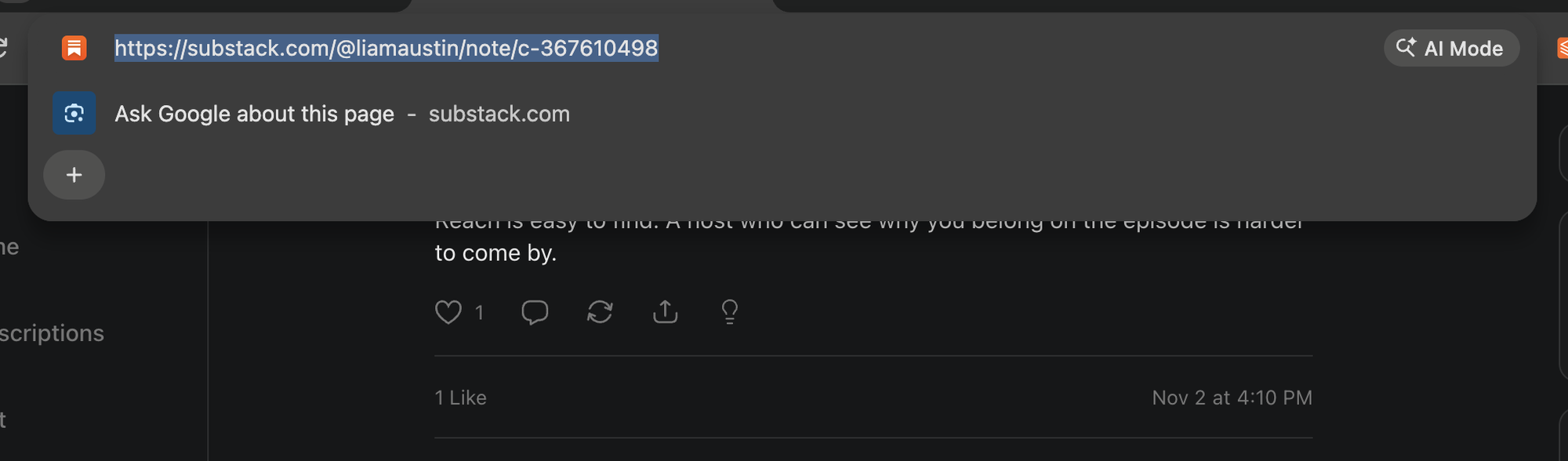
1. On Substack, open the Note you want to restack and copy its URL from the address bar. It looks like `https://substack.com/@handle/note/c-123456789`.
2. In WriteStack, open a new Note in the editor and paste the URL.
3. Wait a moment. WriteStack shows the other writer's Note as a card under the text, with their name, photo and words.
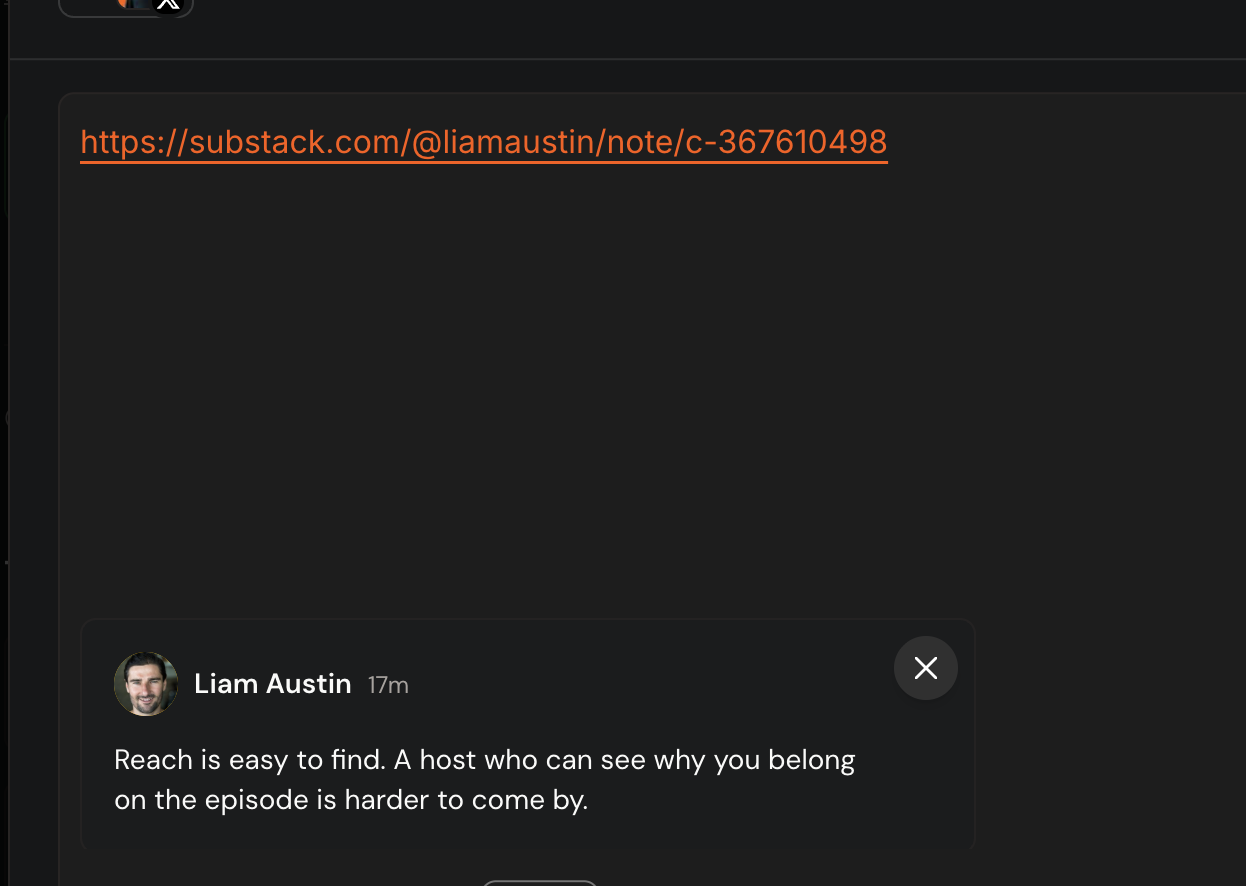
4. Hover the URL in your text and click **Remove link from note text**. The card stays; only the URL goes away.

5. Write your own comment above the card, or leave the text empty for a plain restack. Then publish or schedule the Note as usual.
## Limits [#limits]
| Item | Limit |
| --- | --- |
| Quoted Notes per Note | 1. It takes the Note's one [link preview](/docs/using/notes/images-and-link-previews#link-previews) spot |
| Notes with a poll | Can't quote a Note |
To remove the card, hover it and click its remove (**×**) button.
{/* TODO(orel): Confirm a quoted Note counts toward the one-link-preview limit, and that an empty-text Note with only the card publishes as a plain restack on Substack. */}
## If it doesn't work [#if-it-doesnt-work]
| Problem | Fix |
| --- | --- |
| No card shows after pasting | Check the URL is a Note link (it has `/note/c-` in it), not a post link. Paste it again. |
| The URL is still in my published Note | You skipped step 4. Remove the link from the text before publishing. |
# Weekly template (/docs/using/schedule/weekly-template)
Your weekly template is the set of times you post every week, for example 9:00 and 17:00 Monday to Friday. **Add to Queue** places Notes on these times. Each time is called a slot.
## Open the template [#open-the-template]
Either:
- **My Notes → More actions → Edit schedule queue**, or
- **My Notes → Scheduled notes → Edit queue**.
The dialog is called **Create a posting schedule** when you have no times yet, and **Edit your posting schedule** after that.
## Start with a suggested schedule [#start-with-a-suggested-schedule]
If you have no times yet:
1. Click **Create suggested schedule**.
2. Enter **How many notes per day?**
3. Click **Create schedule**. WriteStack picks the times for you.
You can change any of them afterwards.
## Add a time [#add-a-time]
1. Click **Add a new slot**.
2. Set the hour and minutes. Your timezone shows under the picker.
3. Click **Save slot**. If that time already exists, the button reads **Time used**.
A new time is on all seven days. Untick the days you don't want.
## Edit a time [#edit-a-time]
| To | Do this |
| --- | --- |
| Change the time | Click the time, type the new one, press Enter |
| Change the days | Tick or untick **MON** to **SUN** in its row |
| Delete it | Click the trash icon ("Delete slot (It won't delete your schedules)") |
If future Notes are scheduled at that time, WriteStack asks first:
| You changed | Dialog | Choices |
| --- | --- | --- |
| The time | **Move scheduled notes too?** | **Update slot only** or **Update slot + move notes** |
| Deleted it | **Delete slot with scheduled notes?** | **Delete slot only** or **Delete slot + reschedule notes** (moves them to the next free times) |
## Reserve a time for tags [#reserve-a-time-for-tags]
1. Click the arrow next to a time to open its settings.
2. Under **Prefer notes tagged**, pick one or more tags.
The time now waits for a Note with any of those tags. Untagged Notes skip it. In the template and the queue, the time shows its tag colors.
## Untagged-only times [#untagged-only-times]
1. Open the time's settings and leave **Prefer notes tagged** empty.
2. Choose who can use it:
- **Any note**: "Tagged or untagged notes can land here".
- **Only untagged notes**: "Notes with a tag skip this time".
The routing rules and examples are on [Tags and slots](/docs/using/concepts/tags-and-slots). In the app, **How does it work** under a time's settings shows a short version.
If no time is open to every Note, the dialog warns you, for example: "Every time is reserved for tags. Untagged notes will have no open slot to land in."
## Default cross-post channels on a time [#default-cross-post-channels-on-a-time]
If you [cross-post with Buffer](/docs/using/cross-posting), a time's settings also show **Cross-post to**.
1. Open the time's settings.
2. Under **Cross-post to**, pick channels.
A Note that lands on this time uses these channels instead of the ones picked on the Note. It still posts to Substack. The channels are applied when a Note is scheduled onto the time. Changing them later doesn't change Notes already there.
## Timezone [#timezone]
Your template uses your account timezone. It shows at the bottom of the dialog as **Timezone:** followed by its name.
To change it, click it there, or go to **Settings → Account Information → Timezone**. WriteStack converts your existing times to the new timezone, so each time keeps posting at the same moment.
{/* TODO(orel): Changing timezone converts each slot's hour/minute but not its days. A slot that crosses midnight in the new timezone may land on the wrong weekday. Worth a warning? */}
## See also [#see-also]
- [Manage the queue](/docs/using/schedule/queue): put Notes on these times.
- [Tag a Note](/docs/using/notes/tags).
# Manage the queue (/docs/using/schedule/queue)
The queue is your scheduled Notes in time order, in **My Notes → Scheduled notes** with the **Queue** view. Add a Note with **Add to Queue** for the next free time, or pick an exact time. Scheduling works on a computer, not on a phone.
With the [browser extension](/docs/using/setup/browser-extension) installed, a Note you add to the queue is scheduled on Substack right away, and Substack publishes it at its time. Notes scheduled without the extension need a sync. See [Sync](/docs/using/concepts/sync).
## Add one Note at the next available time [#add-one-note-at-the-next-available-time]
1. Open the Note in the editor.
2. Make sure the menu next to the schedule button reads **When: Next Available**.
3. Click **Add to Queue**. The button shows the date and time it will use, and the tag name if it is a time reserved for that tag.
The Note takes the first free time in your [weekly template](/docs/using/schedule/weekly-template) that fits its tags. See [Tags and slots](/docs/using/concepts/tags-and-slots).
If no open or matching time is free, the Note takes the next free time of any kind, including reserved times. If you have no weekly times at all, WriteStack asks you to pick a date and time instead.
From a Note card in **Drafts** or **Ready** you can also use the calendar icon, or **Add to queue** in the card menu on a phone.
## Add a Note at a custom time [#add-a-note-at-a-custom-time]
1. Open the Note in the editor.
2. In the **When:** menu, pick **Set Date and Time**.
3. Click **Select and schedule**.
4. Pick the day and time, then click **Schedule to** followed by the time.
Tags don't matter for a custom time. If the time matches a weekly time that has cross-post channels, those channels still apply.
## Put a Note on a specific empty time [#put-a-note-on-a-specific-empty-time]
1. In the queue, click an empty time ("Add a note").
2. Pick one:
- **Write a new note**: "Start a blank note in this time". If the time is reserved for tags, the new Note starts with them.
- **Choose from Ready/Drafts…**: "Schedule a note you already wrote". Click **Schedule here** next to a Note.
If a Note doesn't fit that time, the picker says so, for example "This time is reserved for Promo".
## Other options in the When menu [#other-options-in-the-when-menu]
| Option | What it does |
| --- | --- |
| **Next Available** | Next free time that fits the Note's tags |
| **Now** | Posts right away. The button reads **Post Now**. |
| **Set Date and Time** | You pick the exact time |
| **Make Evergreen** | Reposts on a schedule. See [Evergreen Notes](/docs/using/notes/evergreen). |
| **Sync to Substack** | Only on a scheduled Note. Pushes your edits to Substack. |
## Move a scheduled Note [#move-a-scheduled-note]
To reschedule a Note, meaning change the day or time it posts:
- **Drag it** in the queue onto an empty time, or onto another Note to take that Note's time.
- **Open it** and use **Set Date and Time** to pick a new time.
If you drop it on a time with cross-post channels, the Note takes those channels. You can't move a Note into the past ("Can't schedule in the past"), and evergreen reposts can't be moved.
## Unschedule a Note [#unschedule-a-note]
To cancel a scheduled Note without deleting it, unschedule it. Unscheduling takes a Note out of the queue and off the Substack schedule. It isn't deleted.
- **In the queue:** click the unschedule icon on the Note. It moves to **Drafts**.
- **In the editor:** click **Unschedule note**, then **Move to ready** or **Move to drafts**.
- **Several at once:** click **Select** in **Scheduled notes**, pick Notes, then **Unschedule (N)** → **Move to Drafts** or **Move to Ready**.
Unscheduling isn't available on a phone.
## Edit a scheduled Note [#edit-a-scheduled-note]
To change the text, images or tags of a Note that's already scheduled, open it and edit. Until the change reaches Substack, the editor shows "Not synced (click Sync to Substack or close the editor to sync)". Click **Sync to Substack** or close the editor.
## Schedule many Notes at once [#schedule-many-notes-at-once]
1. Go to **My Notes → More actions → Batch schedule**. Or, in **Drafts** or **Ready**, click **Select**, pick Notes, then **Batch → Batch schedule**.
2. Choose **Drafts** or **Ready**, then queue all of them or click **Select Notes** to pick some.
3. Optional: open **Cross-post to Buffer** or **Automations** to set channels or [auto-restack](/docs/using/notes/auto-restack) for every Note in the batch.
4. Click **Review Schedule**. The button shows how many Notes fit your plan, for example "Review Schedule (12/20 notes)".
5. Check the dates. **Shuffle List** mixes the order. **Smart Shuffle** "Shuffles, then spreads notes so each batch mixes all your tags."
6. Click **Start Schedule** and keep the tab open.
Each Note takes the next free time that fits its tags, as with **Add to Queue**. Click **Stop** to stop partway.
| Limit | Value |
| --- | --- |
| Speed | Substack allows at most 50 new schedules per 3 minutes. Bigger batches pause between groups of 50 and show a countdown. |
| How many | Up to the number of free places in your plan. See [Capacity](/docs/using/concepts/capacity). |
| How far ahead | 3 months |
Batch scheduling isn't available on a phone.
## Notes with no matching queue time [#notes-with-no-matching-queue-time]
When you schedule several Notes, some may fit nowhere. This usually means they have no tags and every free time is reserved for tags, or their tags don't match any time.
WriteStack then shows a dialog titled "N notes have no matching queue time", listing those Notes. Choose:
| Button | What happens |
| --- | --- |
| **Schedule with tags** | Add a matching tag to each Note in the list first, then click. They go to the matching reserved times. |
| **Use next available times** | Places them on the next free times of any kind, including reserved ones. |
| **Go back** | Nothing is scheduled. |
If the tags you added still don't match, you see "Those tags still don't match a queue time. Add a matching tag or use the next available times."
## Limits [#limits]
| Rule | Value |
| --- | --- |
| Latest posting time | 3 months ahead ("Substack allows scheduling up to 3 months ahead") |
| Scheduled Notes at a time | Depends on your plan. See [Capacity](/docs/using/concepts/capacity). |
| Scheduling on a phone | Not available. "To schedule the note, open WriteStack on a computer." |
## If it doesn't work [#if-it-doesnt-work]
| Problem | See |
| --- | --- |
| A Note didn't post | [Sync](/docs/using/concepts/sync#why-didnt-my-note-post) |
| The queue doesn't match Substack | [Schedule mismatch](/docs/using/troubleshooting/schedule-mismatch) |
| "Schedule Limit Reached" | [Capacity](/docs/using/concepts/capacity) |
# Create an article (/docs/using/articles/create)
An article is a long-form draft that WriteStack stores for one of your Substack newsletters. You create one by asking [the Coach](/docs/using/coach/what-it-does) to write a post, or from an AI agent connected over MCP. It stays in WriteStack until you [push it to Substack as a draft](/docs/using/articles/substack-sync).
{/* TODO(orel): The Articles page (/articles: "New article" button, calendar, editor, "Article settings", "Article schedule") is adminOnly + comingSoon in src/types/navbar.ts, so non-admin writers see a "Coming soon" page there. This page only documents the paths that are live (Coach and MCP). The "Open in Articles" button on Coach post cards is shown to every writer with the articles flag and leads to that Coming soon page. Add the Articles page steps here when it ships. */}
## Before you start [#before-you-start]
- **A connected Substack account.** Articles go to the newsletters linked to your Substack profile. If none is found, the Coach shows "Connect a publication to save this post." See [Connect Substack](/docs/using/setup/connect-substack).
- **The newsletter must be enabled for Articles.** Every newsletter on your Substack profile is enabled unless you hid it from Articles. An AI agent can only create, push or schedule on enabled newsletters.
{/* TODO(orel): The only place to hide or show a newsletter ("Show this newsletter in Articles" in Article settings) is on the Articles page, which is not live yet. */}
## With the Coach [#with-the-coach]
Ask the Coach to write a post, for example: "Write a post about why I moved my newsletter to weekly." It writes the draft as a **Post** card and saves it as an article automatically. You can edit it, pick the newsletter, and ask the Coach to push it to Substack.
The full flow is on [How the Coach writes articles](/docs/using/articles/coach-articles).
## With an AI agent (MCP) [#with-an-ai-agent-mcp]
An agent connected to WriteStack over MCP (Claude, ChatGPT, Claude Code and others) can create articles. See [Build with WriteStack](/docs/build).
1. The agent calls [`list_article_newsletters`](/docs/build/mcp-reference/list_article_newsletters) and asks you which newsletter to use.
2. It calls [`create_article`](/docs/build/mcp-reference/create_article) with a title or topic, an optional subtitle, a Markdown body, optional image URLs and an optional planned date.
3. The article is saved in WriteStack only. Nothing is sent to Substack until it is pushed.
If you give no title or topic, the article is called "Untitled article".
## Formatting [#formatting]
Article bodies are GitHub-flavored Markdown. These formats are supported and synced to Substack:
| Format | Markdown |
| --- | --- |
| Headings | `#` to `######` |
| Bold, italic, strikethrough | `**bold**`, `*italic*`, `~~strike~~` |
| Inline code | `` `code` `` |
| Links | `[text](https://...)` |
| Images | `` |
| Bullet and numbered lists | `-` and `1.` |
| Blockquote | `> quote` |
| Pullquote | `:::pullquote` ... `:::` |
| Callout | `:::callout` ... `:::` |
| Paywall | a line with only `:::paywall:::` |
Everything after the `:::paywall:::` line is behind the Substack paywall: only paid subscribers see it.
Voice and video embeds are not supported.
## Images [#images]
- Images in the Markdown body are fetched and stored by WriteStack.
- An agent can also pass up to 20 image URLs. Each one is fetched, stored, and added to the end of the body.
- Use full `https://` URLs. URLs that are invalid or can't be reached are skipped, and the agent is told which ones.
- For an image with no public link, like a file on your computer or a private Google Drive file, the agent can upload it with [`create_article_image_upload`](/docs/build/mcp-reference/create_article_image_upload). Nothing has to be made public. This needs an agent that can send files over HTTP, such as Claude Code, Cowork, or a Claude chat that can run code. Otherwise, give the agent a public image link.
- Images are uploaded to Substack when the article is pushed.
The Coach's **Post draft** editor has no image button. To add images to a Coach draft, ask an MCP agent to add them, or add them on Substack after you push.
## Planned date [#planned-date]
A planned date is the day you plan to publish. It is saved with the article, and agents read it back as `plannedForDate`. Leave it out for an undated draft.
A planned date does not schedule anything on Substack. To schedule, see [Schedule on Substack](/docs/using/articles/substack-sync#schedule-on-substack).
## Limits [#limits]
| Item | Limit |
| --- | --- |
| Image URLs passed by an agent per call | 20 |
| Size of an image an agent uploads | 10 MB |
| Time to use an upload link | 15 minutes |
| Articles returned by `list_articles` per call | 20 by default |
| MCP access (agents) | Standard and Enterprise. See [plans and limits](/docs/account/plans-and-limits) |
## If it doesn't work [#if-it-doesnt-work]
| Message | What it means |
| --- | --- |
| "Connect a publication to save this post." | WriteStack found no Substack newsletter for your account. [Connect Substack](/docs/using/setup/connect-substack). |
| "No newsletters are enabled for Articles." | Every newsletter is hidden from Articles. |
| "That newsletter is not enabled for Articles." | The agent picked a newsletter that is hidden or not on your profile. Ask it to list newsletters again. |
| "Articles are not enabled on this account." | Your account doesn't have Articles. Check your [plan](/docs/account/plans-and-limits) or [contact support](/docs/using/support). |
# Push an article to Substack (/docs/using/articles/substack-sync)
Pushing sends a WriteStack article to Substack as a **draft**. It never publishes. The push runs through the WriteStack browser extension in an open WriteStack tab, so it finishes in seconds when WriteStack is open and waits otherwise.
For how WriteStack and Substack stay in step in general, see [Sync](/docs/using/concepts/sync).
{/* TODO(orel): The Articles page and its Substack panel (push, schedule, unschedule, settings, conflict view, "Grant access" for custom domains) are adminOnly + comingSoon in src/types/navbar.ts. This page only documents the Coach and MCP paths. Add the in-app buttons when Articles ships. */}
## What you need [#what-you-need]
- The [WriteStack browser extension](/docs/using/setup/browser-extension), version 1.5.28 or newer.
- You are logged into Substack in the same Chrome.
- WriteStack is open in a Chrome tab. Any WriteStack page works.
- The newsletter is enabled for Articles. See [Create an article](/docs/using/articles/create#before-you-start).
{/* TODO(orel): 1.5.28 is the "substack-drafts" gate in src/types/useExtension.type.ts. The code comment says to confirm it against the extension release. Confirm 1.5.28 is published in the Chrome and Firefox stores. */}
## Push a draft [#push-a-draft]
**From the Coach:** ask, for example, "Push this to Substack." If you have more than one newsletter and didn't name one, the Coach asks "Which newsletter should I push it to?". See [How the Coach writes articles](/docs/using/articles/coach-articles).
**From an AI agent (MCP):** the agent calls [`push_article_to_substack`](/docs/build/mcp-reference/push_article_to_substack) with the newsletter you chose.
What happens:
1. WriteStack queues a sync job for the article.
2. An open WriteStack tab with the extension picks it up and writes the draft on Substack.
3. The first push creates the Substack draft. Later pushes update the same draft.
A push replaces the title, subtitle, body and settings of the Substack draft with the WriteStack version. If the Substack draft was edited after the last push, WriteStack stops with a **conflict** instead of overwriting it.
An article that already has a Substack draft stays on that newsletter. An agent can't push it to a different one. If you ask the Coach to push it to another newsletter, it pushes a copy there and the original stays where it was.
## Schedule on Substack [#schedule-on-substack]
Scheduling sets the article to publish on Substack at a set time. Only an AI agent can do this today, with [`schedule_article_on_substack`](/docs/build/mcp-reference/schedule_article_on_substack). The Coach can't schedule articles.
- The agent passes a publish time, or leaves it out to use the newsletter's next free article slot.
- If the article isn't on Substack yet, it is pushed as a draft first, then scheduled.
- The agent can also set the post audience and email audience.
{/* TODO(orel): Without a publish time, scheduling uses "Article schedule" slots, which are set on the Articles page (not live yet). With no slots it fails with "This newsletter has no article slots yet. Add one with Article schedule on the Articles page." Until Articles ships, agents should always pass a time. */}
## Unschedule [#unschedule]
[`unschedule_article_on_substack`](/docs/build/mcp-reference/unschedule_article_on_substack) removes the article from the Substack schedule. The draft stays on Substack. The article must have been pushed first.
## Substack settings [#substack-settings]
An agent can change these with [`update_article`](/docs/build/mcp-reference/update_article). They are saved in WriteStack and sent to Substack on the next push.
| Setting | Default when not set |
| --- | --- |
| Audience | Everyone |
| Who can comment | Everyone |
| SEO title and SEO description | Substack's own |
| Slug (the post's URL) | Substack's own |
| Social title | The article title |
| Publish time | None |
If the slug is already used by another post on Substack, the draft keeps its current slug and you get a warning.
The Coach edits only the title, subtitle and body.
## Status [#status]
An agent can read the status with [`get_article_substack_status`](/docs/build/mcp-reference/get_article_substack_status). The Coach checks it when you ask whether a draft is on Substack.
| Status | Meaning |
| --- | --- |
| `idle` | Not pushed yet. |
| `pending` | Queued. It runs the next time WriteStack is open in Chrome with the extension. |
| `syncing` | An open WriteStack tab is pushing it right now. |
| `synced` | The draft (and schedule, if any) is on Substack. |
| `blocked` | The extension can't run it yet. See the table below. |
| `conflict` | The Substack draft has edits made after the last push. Nothing was overwritten. |
| `failed` | The push failed. The error text says why. |
## If it doesn't work [#if-it-doesnt-work]
| Message | Fix |
| --- | --- |
| "Sync is waiting for WriteStack to be open with the Chrome extension. It is not on Substack yet." | Open WriteStack in a browser with the extension installed. The push runs on its own. |
| "Sync is blocked until the WriteStack Chrome extension is installed." | [Install or update the extension](/docs/using/setup/browser-extension). |
| "Sync is blocked until you log into Substack in Chrome." | Log into Substack in the same Chrome, then open WriteStack. |
| "Sync is blocked until the extension is granted access to this custom domain." | Your newsletter uses a custom domain. The extension needs permission for it. |
| "Substack has edits made after the last WriteStack update. Open the article to resolve." | Someone edited the draft on Substack. Copy those edits into WriteStack, or keep editing on Substack. |
| "This article is already drafted on a different Substack newsletter." | Push it to that newsletter, or create a new article for the other one. |
| "That draft is empty, so it was not pushed." | The Coach only pushes drafts with a body. |
{/* TODO(orel): Custom-domain access and conflict resolution are only offered in the Articles page UI ("Grant access", conflict view), which is not live. Say where a writer without the Articles page should grant host access and resolve a conflict. */}
More fixes: [Sync errors](/docs/using/troubleshooting/sync-errors).
# How the Coach writes articles (/docs/using/articles/coach-articles)
Ask the Coach to write a post and it drafts one in a **Post** card, then saves it as an article draft in WriteStack on its own. It only sends a draft to Substack when you ask, and it never schedules or publishes an article.
## Write a post [#write-a-post]
1. Open **Coach** and ask, for example: "Write a post about the three mistakes I made in my first year."
2. The Coach follows its post-writing playbook and matches your style and length from your published posts.
3. The draft appears as a **Post** card. Its status moves from **Writing** to **Saving draft** to **Draft saved**.
The draft is saved on your primary newsletter. If you have more than one newsletter, pick another one from the newsletter menu on the card. Once a draft is on Substack, its newsletter can't change: "This draft is already on Substack, so its newsletter stays put."
The card shows the word count and read time, and has two buttons:
| Button | What it does |
| --- | --- |
| **Edit post** | Opens the **Post draft** panel. |
| **Copy** | Copies the title, subtitle and body as plain text. |
## Edit the draft yourself [#edit-the-draft-yourself]
**Edit post** opens the **Post draft** panel, with the title, subtitle and body and a formatting toolbar. Changes save on their own. The status at the top reads **Saving**, then **Saved**. If it reads **Couldn't save · Retry**, click it to try again.
The panel has no image button. See [Images](/docs/using/articles/create#images).
## Ask the Coach to edit a draft [#ask-the-coach-to-edit-a-draft]
Ask, for example: "Make the intro shorter in that draft." The Coach:
1. Reads the current version of the draft, including your own edits.
2. Saves the change in WriteStack. A change to the body replaces the whole body.
3. If the draft is already on Substack, asks whether to push the change. With more than one newsletter, it asks which one, with a last option **Don't push yet**.
It pushes only after you choose. The Coach can edit the title, subtitle and body. It can't change Substack settings like audience, SEO or slug.
If you edited the draft at the same time, the Coach's save is refused and it reads the draft again, so it doesn't overwrite your edit.
## Push the draft to Substack [#push-the-draft-to-substack]
Ask, for example: "Push it to Substack."
- The Coach pushes the draft saved in this chat, or the one you quoted.
- With more than one newsletter and none named, it asks "Which newsletter should I push it to?". Pick one on the question card.
- If the draft is already on another newsletter, it pushes a copy to the one you picked. The original stays where it was.
- It only pushes drafts with a body.
The push needs the browser extension and an open WriteStack tab. Requirements, statuses and errors are on [Push an article to Substack](/docs/using/articles/substack-sync).
## What waits for you [#what-waits-for-you]
| Step | Who does it |
| --- | --- |
| Draft the post | The Coach, when you ask for a post |
| Save it as an article in WriteStack | The Coach, automatically |
| Edit the draft | You, or the Coach when you ask |
| Push it to Substack as a draft | The Coach, only when you ask |
| Push an edit to a draft that is on Substack | The Coach asks first |
| Schedule or publish on Substack | You, on Substack. The Coach can't. |
An AI agent connected over MCP can schedule articles. See [Schedule on Substack](/docs/using/articles/substack-sync#schedule-on-substack).
## If it doesn't work [#if-it-doesnt-work]
| What you see | Fix |
| --- | --- |
| "Connect a publication to save this post." | WriteStack found no Substack newsletter for your account. [Connect Substack](/docs/using/setup/connect-substack). |
| **Not saved** on the card | The draft couldn't be saved as an article. Use **Copy** to keep the text. |
| "Save this draft before choosing a newsletter." | Wait for **Draft saved**, then pick the newsletter. |
| "That newsletter isn't available for articles." | That newsletter is hidden from Articles or no longer on your profile. |
{/* TODO(orel): The card and the Post draft panel also show "Open in Articles" to writers with the articles flag, but /articles is comingSoon for non-admins. Hide the button or ship the page before pointing writers to it. */}
# What the Coach can do (/docs/using/coach/what-it-does)
The Coach is a chat in WriteStack, with an owl called Quill. It reads your notes, posts and stats, drafts notes and posts in your voice, and saves or schedules notes when you ask. It's included on every paid plan. How much you can use it depends on the plan: see [Coach limits](/docs/using/coach/limits).
## Open it [#open-it]
Click **Coach** in the sidebar. A new chat opens with "How can I help you grow?" and four starters:
| Starter | What it asks |
| --- | --- |
| **Paid growth** | What to focus on to grow paid subscribers |
| **Note impressions** | When your notes get the most impressions |
| **Schedule a job** | Set up a [routine](#routines) that drafts notes every weekday morning |
| **Write notes** | Five notes in your voice, on a topic you finish typing |
You can also type any question. A message can be up to 40,000 characters and carry up to 4 images.
## What it knows [#what-it-knows]
| Source | What the Coach reads |
| --- | --- |
| Your notes | Drafts, ready, scheduled and published notes. It learns your voice from published ones. |
| Your posts | The posts on your newsletters, so it can find one by title and write from it. |
| Notes statistics | Impressions, reactions, restacks and more. Needs Standard or Enterprise and the [extension](/docs/using/setup/browser-extension). |
| Posts Statistics | Views, opens, open rate, signups and more per post. Needs Standard or Enterprise and the extension. |
| Comments and mentions | The same feed as the Activity Center. |
| Your queue and schedule | Your slots and what is scheduled. |
| Your [writing style](/docs/using/concepts/writing-style) | The voice it writes in. |
| The Writing Edge | WriteStack's research on what works on Substack, plus playbooks for notes, posts, titles, SEO, growth and paid subscribers. It links the source it used. |
| Inspiration | Top notes by other writers, the same search as the Inspiration page. |
| The public web | Current public pages, when the answer depends on one. |
| [Memory](#memory) and [Library](#library) | Facts and files you gave it. |
## What it can do [#what-it-can-do]
| Ask for | What happens |
| --- | --- |
| Notes | It writes each note as a **Note** card. Click a card to open it in the note editor. |
| Save notes | Saves notes as draft or ready. |
| Schedule notes | Saves notes and puts them on your queue, in the next open slots unless you name a time. Needs the browser extension, from a computer. See [Sync](/docs/using/concepts/sync). |
| Evergreen notes | Turns a note into an evergreen note that repeats. Needs the extension. |
| Tags | Adds or removes tags on your notes. |
| Cross-posting | Adds [cross-post channels](/docs/using/cross-posting) to a note, or writes a version for one platform, when you ask. |
| Posts | Writes a post and saves it as an article. See [How the Coach writes articles](/docs/using/articles/coach-articles). |
| Push a post to Substack | Sends the article to Substack as a draft. |
| Images | Makes or edits one image per message, for example for a note. |
| Charts | Draws a chart from your numbers. |
| Answers | Explains your stats, what works on Substack, or how to use WriteStack. |
The Coach can't publish anything, and it doesn't act on your notes or articles unless you ask. See [What needs your approval](/docs/using/coach/approvals) and [what the Coach can't do](/docs/using/coach/limits#what-the-coach-cant-do).
When two options are close, the Coach asks you with a question card instead of guessing. Pick an option, or type your own under **Something else**.
## Chats [#chats]
Each conversation is a chat. Your chats are listed by date, next to **Memory**, **Library** and **Routines**.
- **New chat** starts a fresh conversation.
- A chat made by a routine is labeled **Routine**.
- To delete a chat, click its delete button, then **Delete chat**. Its messages are deleted. Memory facts saved from it stay.
- The Coach can find an earlier chat when you refer to it, for example "like we discussed last week".
Questions sent through [`ask_coach`](/docs/build/mcp-reference/ask_coach) from an AI agent are saved as Coach chats too.
## Memory [#memory]
**Memory** holds facts about you and your publication: audience, goals, offers, voice, preferences. The Coach saves useful facts from chats and uses them next time.
- Ask "Remember that I publish on Tuesdays", or type it under **Add a fact**.
- Edit or delete any fact. **Delete all** clears them.
- Turn **Use memory** off and the Coach won't save new facts or use the saved ones.
The Coach doesn't save facts about other people, health, politics, religion, credentials or personal finances.
## Library [#library]
**Library** holds material you want the Coach to search: a public link, pasted text, or a file (.txt, .md or PDF). Give each item a title. Only you can search your Library. The Coach searches it when you ask.
## Routines [#routines]
A routine is a Coach job that runs on a schedule, every day or every week. Examples: morning note drafts, a weekly review of your note stats, a queue health check, or an accountability check-in against a goal.
1. Ask for it in a chat. The Coach shows a card with the name, **When**, **Timezone**, **Does** (**Saves drafts** or **Writes a report**) and **Delivery**.
2. Click **Confirm** to save it. Nothing is saved until you do.
3. Manage it under **Routines**: **Run now**, **Pause** or **Resume**, or delete it.
Each run posts its result in its own chat and by email. A routine can save drafts or write reports. It can't schedule or publish. Routines are on Standard and Enterprise. Limits are on [Coach limits](/docs/using/coach/limits#routines).
# What needs your approval (/docs/using/coach/approvals)
The Coach only changes your notes or articles when you ask it to. Your request is the approval for that action: there is no extra approve button. Repeating jobs, pushing an edit to a draft already on Substack, and close choices wait for you on a card. The Coach never publishes anything.
## Runs when you ask [#runs-when-you-ask]
These run as soon as you ask for them in the chat. The result appears as a status line under the reply, for example **Scheduled** or **Saved**, with a list of the notes it touched.
| You ask to | What the Coach does |
| --- | --- |
| Save notes | Saves them as draft or ready. Ready is not the queue. |
| Change a note's status | Moves notes to draft or ready. |
| Schedule notes | Saves the notes and puts them on your queue, in the next open slots unless you named a time. |
| Make a note evergreen | Turns it into an evergreen note. |
| Tag notes | Adds or removes tags. |
| Edit an article | Saves a new title, subtitle or body in WriteStack. |
| Push an article to Substack | Sends it to Substack as a draft. |
| Remember something | Saves a fact to [Memory](/docs/using/coach/what-it-does#memory). |
| Make an image | Makes or edits one image in the reply. |
Notes that are already scheduled, evergreen or published are left as they are, and the status line says **Already scheduled**, **Already evergreen** or **Already published**. A scheduled note only moves back to draft or ready when you name that note and ask.
Scheduling and evergreen need the browser extension and a computer. Without them you see "The WriteStack extension is needed" or "Run this from a computer". How scheduled notes reach Substack is explained in [Sync](/docs/using/concepts/sync).
## Happens on its own [#happens-on-its-own]
| What | Why |
| --- | --- |
| Reading your notes, posts, stats, queue, Memory and Library | Reading changes nothing. |
| Saving a post the Coach wrote as an article draft in WriteStack | So you can edit it. It is not sent to Substack. See [How the Coach writes articles](/docs/using/articles/coach-articles). |
| Saving facts you stated in a chat to Memory | Only while **Use memory** is on. |
Notes the Coach writes are not saved on their own. Each one is a **Note** card until you ask the Coach to save or schedule it, or open the card and save it in the note editor.
## Waits for you on a card [#waits-for-you-on-a-card]
| Card | When it shows | What to do |
| --- | --- | --- |
| Routine card | You ask for something every day or every week | Check **When**, **Timezone**, **Does** and **Delivery**, then click **Confirm**. Nothing is saved until you do. |
| Question card | Two or more options are close, for example which newsletter to push to | Pick an option, or type your own under **Something else**, then send. Or **Skip**. |
| Push an edited draft | You asked for an edit to an article that is already on Substack | Pick the newsletter to push to, or **Don't push yet**. |
| Select articles | The Coach couldn't find a post you named | Mark the posts, then confirm. |
## Never [#never]
- Publish a note or a post.
- Schedule, unschedule or publish an article on Substack.
- Delete a note.
- Change an article's Substack settings (audience, comments, SEO, slug).
Chats started from an AI agent through [`ask_coach`](/docs/build/mcp-reference/ask_coach), and [routine](/docs/using/coach/what-it-does#routines) runs, can only save drafts. They can't schedule, push or publish.
## Decline or undo [#decline-or-undo]
- **Before it runs:** don't ask, or tell the Coach to stop. Click **Stop** to end a reply that is still running.
- **On a card:** don't click **Confirm**, choose **Don't push yet**, or **Skip** the question.
- **After it runs:** open the note from the status line and change it in the note editor, or ask the Coach to move it back to draft. Remove a routine under **Routines**.
- **Pushed drafts:** a push only creates or updates a Substack draft. Delete or edit it on Substack if you don't want it.
# Coach limits (/docs/using/coach/limits)
Every paid plan includes a weekly Coach allowance: Hobbyist is the 1x base, Standard gets 5x and Enterprise 20x. The allowance resets every Monday at 00:00 UTC. When it runs out, the Coach stops replying until the reset or until you upgrade.
## Allowance per plan [#allowance-per-plan]
| Plan | Weekly Coach usage | Routines |
| --- | --- | --- |
| Hobbyist | 1x | Not included |
| Standard | 5x | Up to 3 |
| Enterprise | 20x | Up to 10 |
Usage depends on the work, not on a message count. A long chat, a post draft, reading many stats or making an image uses more than a short question. You never see a number, only a notice when you are close.
The Coach needs a paid plan. Plan details are on [Plans and limits](/docs/account/plans-and-limits).
## What uses the allowance [#what-uses-the-allowance]
- Messages in the Coach.
- Questions an AI agent sends through [`ask_coach`](/docs/build/mcp-reference/ask_coach).
- [Routine](/docs/using/coach/what-it-does#routines) runs.
- Images the Coach makes.
## When you are close or out [#when-you-are-close-or-out]
| When | What you see |
| --- | --- |
| About 80% used | "You're close to this week's Coach allowance. It resets …" above the message box. |
| 100% used | "You've used this week's Coach allowance. It resets …". The Coach doesn't reply to new messages. |
On Hobbyist and Standard the notice adds a link: **Upgrade to Standard for 5x usage** or **Upgrade to Enterprise for 20x usage**. It opens the pricing page. See [Change your plan](/docs/account/change-plan).
A routine that runs while the allowance is used up is paused: "Your weekly Coach allowance is used up, so this routine is paused until it resets."
## Other limits [#other-limits]
| Limit | Value |
| --- | --- |
| Message length | 40,000 characters |
| Images attached to one message | 4 |
| Images the Coach makes per message | 1 |
| Messages per minute | A short per-minute cap. The message says the limit and how many seconds to wait. |
| Replies at once in one chat | 1. Wait for "The Coach is still working on your last message." to clear, or click **Stop**. |
| Routine paused when unused | After 30 days without opening it |
Rarely, the Coach is busy for everyone: "The Coach is at capacity for today." It resets at midnight UTC, shown in your time.
{/* TODO(orel): requestsPerMinute (default 10) and the routine caps (3 / 10) come from the admin-editable Coach config. Confirm the live values before adding exact numbers for messages per minute. */}
## Routines [#routines]
- Standard can keep up to 3 routines and Enterprise up to 10. At the cap, the card says "You can have 3 routines. Pause or delete one first." (or 10).
- A routine runs at most once a day.
- A routine that hasn't been opened in 30 days is paused. One that fails several runs in a row is paused too. Click **Resume** under **Routines**.
- Weekly reviews of note stats need the Chrome extension to have synced your stats.
## What the Coach can't do [#what-the-coach-cant-do]
- **Publish.** It can't publish a note or a post, on Substack or anywhere else.
- **Schedule articles.** It can push a post to Substack as a draft, but not schedule, unschedule or publish it. An AI agent over MCP can schedule. See [Schedule on Substack](/docs/using/articles/substack-sync#schedule-on-substack).
- **Delete notes.** It can save, schedule, tag and move notes between draft and ready.
- **Schedule without the extension.** Scheduling and evergreen notes need the [Chrome extension](/docs/using/setup/browser-extension) on a computer.
- **Read stats your plan doesn't include.** Notes statistics and Posts Statistics need Standard or Enterprise.
- **Copy other writers.** It can show top notes from the Inspiration feed, but it won't look up a named writer to draft in their pattern.
- **Add images to articles.** Post drafts have no image button. See [Images](/docs/using/articles/create#images).
- **Act from a routine or `ask_coach`.** Those can only save drafts or write reports.
# Notes analytics (/docs/using/analytics/notes-analytics)
WriteStack shows how your published Substack Notes perform on two pages: **Statistics** (totals and trends for a date range) and **Notes Performance** (every Note, one card each, sortable by any metric). Both read the numbers Substack reports for your Notes, collected by the WriteStack browser extension.
## Who can use it [#who-can-use-it]
| Plan | What you see |
| --- | --- |
| Hobbyist | A preview with sample data and an upgrade prompt |
| Standard | Full Notes analytics |
| Enterprise | Full Notes analytics |
See [Plans and limits](/docs/account/plans-and-limits).
## Where the data comes from [#where-the-data-comes-from]
- The [WriteStack extension](/docs/using/setup/browser-extension) reads your Notes statistics from Substack and sends them to WriteStack. Without it, both pages ask you to install it.
- The extension refreshes your Notes data at most every 8 hours. The page header shows **Last updated** with the time of the last refresh.
- The numbers are Substack's own. WriteStack stores the breakdowns exactly as Substack names them, so a label like "Unconnected" comes from Substack.
- If you just joined, the first fetch can take a few minutes. Notes Performance shows "I'm fetching your Notes right now" until it finishes.
## Statistics page [#statistics-page]
Open **Statistics** in the sidebar. The page title is **Notes Statistics**.
### Date range and interval [#date-range-and-interval]
- **Date range:** Last 7 days, Last 30 days (default), Last 90 days, Last 12 months, All time, or Custom.
- **Interval** for the charts: Daily, Weekly, Monthly, or Yearly.
- Most numbers show a trend badge that compares the range with the previous period of the same length. "No data in the previous period" means there is nothing to compare with.
### Sections [#sections]
| Section | What it shows |
| --- | --- |
| **What notes drove** | Link clicks, Free subs, Paid subs and ARR attributed. These are the outcomes Substack attributes to your Notes. |
| **Impressions** | People who saw your Notes in the range, as a chart, plus Notes published, Avg per note and Best note (impressions of your top Note). |
| **Interaction mix** | Each interaction type Substack reports, such as likes, replies, restacks, link clicks, profile visits and shares. |
| **Surface mix** | Where your reach came from, for example Feed or Profile. |
| **Audience mix** | Who you reached: Subscribers, Followers, or Unconnected (people with no link to you yet). |
| **Link clicks** | Which links in your Notes got clicked. Substack reports clicks per Note, so a Note with several links is grouped separately. |
| **Hourly Breakdown** | A grid of your followers' activity by hour. Stronger color means more likes, restacks and comments. |
### Things you can click [#things-you-can-click]
- **A point on the Impressions chart** lists the Notes published in that period, sorted by impressions.
- **An interaction tile** opens a detailed view with its total, share of all interactions, and peak period, and the Notes behind it.
- **A link** in Link clicks lists the Notes that included it.
- **Add annotation** pins a note to a point on the chart, for example "Started posting twice a day". Use it to remember what you changed.
- **Share** turns the Impressions section into a screenshot and creates a Note with it.
## Notes Performance page [#notes-performance-page]
Open **Notes Performance** in the sidebar. Every published Note shows as a card with its likes, replies and restacks, plus the metric you sort by.
### Filters [#filters]
| Control | Options |
| --- | --- |
| Sort by | Reach: Impressions, Profile Visits, Clicks. Growth: Free Subs, Paid Subs. Engagement: Likes, Comments, Restacks. Time: Date. |
| Direction | Descending or Ascending |
| Date range | Last 7 days, Last 30 days, Last 90 days, Last 12 months, All time (default), Custom |
| Category | **All categories** or one of your [tags](/docs/using/notes/tags) |
| Search | **Search notes...** matches the Note text |
The default view sorts by **Free Subs**, high to low, over **All time**. That puts the Notes that brought you the most subscribers first. See [Find your best Notes](/docs/using/analytics/best-notes).
### On each card [#on-each-card]
- **Full breakdown** shows every metric Substack reports for that Note, including its surface and audience breakdowns.
- **View on Substack** opens the Note.
- Click the card to open the Note in the note editor.
- A badge appears when the same or a similar Note was posted in the last 4 weeks or is scheduled again.
Switch between the grid and a list with the view toggle. The page loads 30 Notes at a time; click **Load More** for the rest.
## If it doesn't work [#if-it-doesnt-work]
- **"Install the WriteStack extension"**: install it and sign in to Substack in the same browser. See [Browser extension](/docs/using/setup/browser-extension).
- **"Make sure you are logged in to the correct account"**: the Substack account in your browser is not the one connected to WriteStack.
- **"Stats are still computing"**: Substack has not returned engagement data yet. Check back in a few minutes.
- **"No notes found"**: WriteStack is still fetching your Notes. Click **Refresh now** after a few minutes, or **Contact support**.
- A section says "will appear once Substack returns data": Substack has no data for that breakdown in the selected range. Try a longer range.
# Find your best Notes (/docs/using/analytics/best-notes)
Open **Notes Performance**: by default it ranks every Note by **Free Subs**, highest first, over **All time**. The top cards are the Notes that grew your list the most. Switch the sort to **Paid Subs** to see which Notes brought paying readers.
This needs Notes analytics, which is on the Standard and Enterprise plans. See [Notes analytics](/docs/using/analytics/notes-analytics).
## Steps [#steps]
1. Open **Notes Performance** in the sidebar.
2. In the sort menu, pick the outcome you care about:
| Goal | Sort by |
| --- | --- |
| More free subscribers | **Free Subs** |
| More paying subscribers | **Paid Subs** |
| More reach | **Impressions** |
| More people checking out your profile | **Profile Visits** |
| More conversation | **Comments** or **Restacks** |
3. Set the date range. **All time** finds your classics. **Last 30 days** or **Last 90 days** shows what works with your audience now.
4. Narrow it down with a **Category** (one of your [tags](/docs/using/notes/tags)) or **Search notes...** to compare Notes on one topic.
5. Open **Full breakdown** on a top card to see where its reach came from and who saw it.
## Your best Note in a period [#your-best-note-in-a-period]
On **Statistics**, the **Impressions** section shows **Best note**: the impressions of your top Note in the selected range. To see which Note it was, open **Notes Performance**, pick the same date range and sort by **Impressions**. On the Statistics chart you can also click any point to list the Notes published in that period, sorted by impressions.
The **What notes drove** section shows the total Free subs, Paid subs and ARR attributed to your Notes in the range, so you can see if this month beat the last one.
## Use them to write more [#use-them-to-write-more]
- **Look for the pattern, not the Note.** Sort by Free Subs and read the top 10 together. Look at the first line, the length, the topic and whether there was a link or image.
- **Compare by tag.** If you [tag](/docs/using/notes/tags) your Notes by topic or format, filter by **Category** to see which kind converts best.
- **Reuse a winner.** Click a card to open the Note in the note editor, rework it, and queue the new version. A badge on the card warns you when the same or a similar Note was already posted in the last 4 weeks or is scheduled.
{/* TODO(orel): Confirm that saving a Note opened from Notes Performance creates a new draft (it opens with status "inspiration") and doesn't touch the published Note. */}
- **Ask the Coach.** The [Coach](/docs/using/coach/what-it-does) can read your Notes statistics and suggest what to write next based on what worked.
- **Mark what you changed.** On the Statistics chart, use **Add annotation** on the day you changed something (a new format, posting time or topic) so you can see its effect later.
## Limits [#limits]
- Subscriber numbers are what Substack attributes to each Note. WriteStack doesn't recalculate them.
- Data refreshes at most every 8 hours, so a Note posted this morning may not have its final numbers yet.
- A new Note has had less time to collect impressions. Compare Notes over the same range, or use **Avg per note** on Statistics.
# Posts Statistics (/docs/using/analytics/posts-statistics)
**Posts Statistics** shows how your Substack newsletter posts perform: subscriber counts and ARR, email open and delivery rates, interactions, and a ranked table of your posts. The numbers come from Substack and are collected by the WriteStack browser extension.
{/* TODO(orel): On main, Posts Statistics is admin-only (navbar `adminOnly: true`, page checks isAdmin). The uncommitted change on native-social-publishing gates it by the postsStatistics flag (Standard and Enterprise). Publish this page only after that change ships. */}
## Before you start [#before-you-start]
| Requirement | Details |
| --- | --- |
| Plan | Standard or Enterprise. See [Plans and limits](/docs/account/plans-and-limits). |
| Extension | [WriteStack extension](/docs/using/setup/browser-extension) version 1.5.25 or newer |
| Substack | A connected Substack account with at least one newsletter |
## Steps [#steps]
1. Open **Posts Statistics** in the sidebar.
2. The first time, WriteStack asks **Which newsletters are yours?** Tick every newsletter you own and click **Save newsletters**. WriteStack fetches post stats only for those.
3. Keep the tab open while the first fetch runs. The page shows "Fetching your posts". It can take a few minutes if you have hundreds of posts.
4. Pick a date range and interval at the top. To see one newsletter, choose it under **Newsletter**; the default is **All newsletters**.
To change your newsletters later, click **Choose newsletters**. New publications on your Substack profile show up there, marked **New**, until you decide. Use **Refresh newsletters** if one is missing.
## What the page shows [#what-the-page-shows]
### Subscribers [#subscribers]
Live counts from Substack's own subscriber chart, not sums of post conversions. Switch the metric between **Free subscribers**, **Paid subscribers** and **ARR**. The section also shows **Paid now**, **Total now**, and the change across the selected range. Paid subscribers are split into Paid, Free trials, Gifts and Comps.
### How posts land [#how-posts-land]
| Tile | What it means |
| --- | --- |
| **Open rate** | Substack's unique email opens divided by emails delivered |
| **Email traffic** | The share of all views that came from email, including repeat views |
| **Engagement rate** | Average across emailed posts |
| **Delivery rate** | Emails delivered out of emails sent |
Open rate and email traffic are different numbers. Open rate counts each reader once. Email traffic is about views, so one reader opening an email three times adds three views. Use **Open rate** when you compare with Substack's dashboard.
### Interaction mix [#interaction-mix]
Totals for posts published in the range: **Views**, **Likes**, **Comments**, **Restacks** and **Shares**.
### Post type and Audience [#post-type-and-audience]
- **Post type** splits views by the kind of post.
- **Audience** splits views by the Substack audience setting of each post (who can read it).
### Top posts [#top-posts]
A table of your posts with **Views**, **Unique opens**, **Open rate**, **Clicks**, **Free subs** and **Paid subs**. Click a column header to rank posts by it. Click a title to read the post on Substack.
## Date range and interval [#date-range-and-interval]
| Control | Options |
| --- | --- |
| Date range | Last 7 days, Last 30 days (default), Last 90 days, Last 12 months, All time, Custom |
| Interval | Daily, Weekly, Monthly, Yearly |
You can add an annotation to a point on the Subscribers chart, for example the day you launched a paid tier.
## How often it updates [#how-often-it-updates]
The extension fetches post stats when you open WriteStack, at most once a day. The page header shows **Last updated** with the time of the last fetch.
## If it doesn't work [#if-it-doesnt-work]
- **"Choose your newsletters"**: you haven't marked any newsletter as yours. Click **Choose newsletters**.
- **"No newsletters found"**: WriteStack found no newsletter on your Substack profile. Connect a publication in Settings, then open the page again.
- **"No post stats yet"**: the first fetch hasn't run. Open WriteStack with the extension installed and keep the tab open until it finishes.
- **Numbers look out of date**: check that your extension is 1.5.25 or newer. See [Browser extension](/docs/using/setup/browser-extension).
- **"Posts Statistics isn't on for your account"**: your plan doesn't include it. See [Plans and limits](/docs/account/plans-and-limits).
# Activity Center (/docs/using/activity-center)
The **Activity Center** is one feed of the Substack comments, mentions and restacks you can respond to. You can like, reply, restack or resolve each one without leaving WriteStack, using the mouse or keyboard shortcuts.
## Before you start [#before-you-start]
| Requirement | Details |
| --- | --- |
| Plan | Standard or Enterprise. See [Plans and limits](/docs/account/plans-and-limits). |
| Extension | The [WriteStack extension](/docs/using/setup/browser-extension). Likes, replies and restacks are sent to Substack through it. |
Open **Activity Center** in the sidebar.
## Filter and sort [#filter-and-sort]
| Control | Options |
| --- | --- |
| Type | **All**, **Comments**, **Mentions** |
| Sort | **Newest first**, **Oldest first** |
| **Reply to next** | After you send a reply, the reply box of the next activity opens automatically. |
Click **Refresh** to load new activity. When the feed is empty, click **Check for updates**.
## Act on an activity [#act-on-an-activity]
Each item has buttons to like, reply, restack and resolve. **Resolve** removes the item from your WriteStack feed only. Nothing changes on Substack.
The restack menu also has **Restack with a Note**, to restack and add your own words.
### Keyboard shortcuts [#keyboard-shortcuts]
Shortcuts apply to the activity under your mouse pointer. If the pointer isn't over one, they apply to the first activity in the feed. They don't work while you are typing in a text box.
| Key | Action |
| --- | --- |
| `1` | Like |
| `2` | Reply |
| `3` | Restack |
| `5` | Resolve |
| `⌘ + Enter` (Mac) or `Alt + Enter` | Send a reply |
| `Esc` | Close the reply box |
## Activity Settings [#activity-settings]
Click the settings icon at the top of the page to open **Activity Settings**.
| Setting | What it does |
| --- | --- |
| **Time range** | How far back to show activity, from 1 to 6 weeks. The default is 2 weeks. Click **Save time range** after you change it. |
| **Auto-resolve liked comments** | Resolves notifications for comments you already liked. |
| **Auto-like on reply** | Likes a comment when you reply to it. |
| **Auto-resolve on reply** | Resolves a notification when you reply to it. |
| Author rules | Automatically like or resolve notifications from specific authors. Search for an author under **Search authors to auto-handle**. |
You can also set author rules from a notification: click **Auto-handle this author**. For each author you choose what happens to their **Comment replies**, **Mentions** and **Restacks**: **Like**, **Resolve**, or both. **Clear rules** removes them.
## Resolve everything at once [#resolve-everything-at-once]
**Resolve all comments** marks every comment in the feed as resolved and clears them from your Activity Center. It asks you to confirm first and shows how many comments it will resolve.
## A daily pass [#a-daily-pass]
A routine that uses only the features above:
1. In **Activity Settings**, turn on **Auto-like on reply** and **Auto-resolve on reply** once.
2. Open **Activity Center**, choose **Comments** and **Oldest first**, and turn on **Reply to next**.
3. Work down the feed. Press `2` to reply, send with `⌘ + Enter` or `Alt + Enter`, and the next reply box opens. Press `1` to like a comment that doesn't need words, or `5` to skip one.
4. Switch to **Mentions** and do the same.
5. For people who restack you often, set an author rule to like their restacks automatically.
## If it doesn't work [#if-it-doesnt-work]
- **Likes or replies don't reach Substack**: check that the extension is installed and you are signed in to Substack in the same browser. See [Browser extension](/docs/using/setup/browser-extension).
- **Old comments are missing**: raise the **Time range** in Activity Settings (up to 6 weeks).
- **New comments don't show**: click **Refresh**.
# Cross-posting with Buffer (/docs/using/cross-posting)
WriteStack can send each Note to your social channels (X, LinkedIn, Instagram, Threads, Facebook, Bluesky and others) through your Buffer account. You pick the channels per Note or per time in your schedule, and WriteStack sends the cross-posts a few minutes after the Note goes live on Substack.
## Before you start [#before-you-start]
| Requirement | Details |
| --- | --- |
| Plan | Standard or Enterprise. Hobbyist doesn't include cross-posting. See [Plans and limits](/docs/account/plans-and-limits). |
| Buffer | A Buffer account with your social channels already added in Buffer. If you don't have one, WriteStack shows a **Create a Buffer account** link. |
## Connect Buffer [#connect-buffer]
1. Go to **Settings → Cross Post**.
2. Click **Connect with Buffer** and approve access in Buffer. You come back to Settings with "Buffer account connected successfully!".
3. If you have more than one Buffer organization, pick it under **Organization**.
4. Your channels show under **Available Channels**. Click the link button on each one you want to use to activate it. Active ones move to **Active Channels**.
Only active channels appear when you write a Note. WriteStack refreshes your Buffer channels on its own; click **Refresh** after you add a channel in Buffer to see it right away.
{/* TODO(orel): Per-plan limits on active channels (maxConnectedChannelsPerPlan) exist only on the native-social-publishing branch, not on main. Add a "Channels per plan" row once they ship. */}
## Choose channels for a Note [#choose-channels-for-a-note]
1. Open a Note in the note editor.
2. Under **Also post to (optional)**, click each channel you want. Selected channels are highlighted.
3. Click **Preview** to see the clean text and media each channel will get.
4. Schedule the Note as usual.
A Note can go to at most 20 channels. On a Note that is already scheduled, adding or removing a channel updates its cross-posts right away.
## Different text or images per channel [#different-text-or-images-per-channel]
Once you select channels, each one gets its own row in the editor showing "Same as your note".
1. Click a channel's row to open its editor.
2. Change the text, or add images for that channel only. The row now shows **Customized**.
3. To undo, reset that channel's post to the Note.
Per-channel media is images only. After a cross-post goes out, its row shows **Sent**.
## Channels per schedule time [#channels-per-schedule-time]
A time in your weekly schedule can have its own channels. Every Note that lands in that time goes to those channels instead of the ones picked on the Note.
1. Open your posting schedule (see [Weekly template](/docs/using/schedule/weekly-template)).
2. Expand a time and pick channels under **Cross-post to**.
This section only shows once Buffer is connected and at least one channel is active.
## When cross-posts are sent [#when-cross-posts-are-sent]
- A few minutes after the Note's scheduled time, WriteStack checks that the Note is live on Substack, then sends it to each channel through Buffer. Buffer posts it right away, not into your Buffer queue.
- If the Note isn't found on Substack, nothing is cross-posted. Make sure the Note actually published; see [Sync](/docs/using/concepts/sync).
- If a channel fails, you get an email, "Your note didn't reach some Buffer channels", with the reason for each one.
## Platform limits [#platform-limits]
WriteStack checks your Note against each platform's rules before you schedule.
| Platform | Character limit | Media |
| --- | --- | --- |
| X | 280 (no limit for paid X plans) | Optional |
| LinkedIn | 3,000 | Optional |
| Instagram | 2,200 | Required |
| Facebook | 5,000 | Optional |
| Threads | 500 | Optional |
| Bluesky | 300 | Optional |
| TikTok | 2,200 | Video required |
- **Over the character limit**: you get a warning and can still schedule. Shorten the channel's text with a per-channel post.
- **Missing required media or an unsupported video**: that channel can't take the post. WriteStack offers to remove those channels and schedule the rest.
- Videos are also checked against each platform's size, length and format rules. The warning links to Buffer's video requirements.
## Instagram rules [#instagram-rules]
- Every Instagram post needs an image or video.
- Feed images must have an aspect ratio between 4:5 (portrait) and 1.91:1 (landscape). Outside that range you can still schedule, but Buffer uses **Notify Me**: it sends you a reminder and you finish the post in the Instagram app. See [Buffer's aspect ratio guide](https://support.buffer.com/article/622-instagrams-accepted-aspect-ratio-ranges).
- Videos go out as Reels: 3 seconds to 15 minutes, up to 300 MB, MP4 or MOV.
## Disconnect Buffer [#disconnect-buffer]
Go to **Settings → Cross Post → Disconnect** and do both steps:
1. **Open Buffer to disconnect** and remove WriteStack under Apps & extras. This revokes WriteStack's access.
2. **Disconnect in WriteStack** to clear your saved connection and channels.
To stop using one channel, deactivate it instead.
## If it doesn't work [#if-it-doesnt-work]
- **"No channels found"**: add social channels in Buffer first, then click **Refresh**.
- **A channel is missing in the editor**: activate it under **Settings → Cross Post**.
- **"You can cross-post to at most 20 Buffer channels."**: remove some channels from the Note.
- **Instagram post didn't publish**: check the image ratio and the Notify Me reminder in the Buffer app.
# Ghostwriter (/docs/using/ghostwriter)
Ghostwriter mode lets a ghostwriter manage Notes for other WriteStack users: write, schedule and generate Notes in each client's voice, from one account. Clients give the ghostwriter access to their account and can revoke it at any time.
## Who can use it [#who-can-use-it]
| Role | What's needed |
| --- | --- |
| Ghostwriter (writing for clients) | An **Enterprise** plan. See [Plans and limits](/docs/account/plans-and-limits). |
| Client (giving a ghostwriter access) | A WriteStack account |
Ghostwriter mode isn't listed on the pricing page. If you want to use it, [contact support](/docs/using/support) and we'll help you set it up.
{/* TODO(orel): The `ghostwriter` flag is in the Enterprise (premium) plan flags, but the plan feature entry is commented out in plans-consts.ts and the "Collaboration" nav item needs the flag. Confirm whether Enterprise users get it automatically or only on request, and whether clients need any plan. */}
## Where to find it [#where-to-find-it]
Both sides manage access under **Settings → Ghostwriter Access**:
- **My Ghostwriters**: ghostwriters who have access to your account. You can revoke access here.
- **My Clients**: accounts you are ghostwriting for.
# Substack connection problems (/docs/using/troubleshooting/substack-connection)
Most connection problems come from the wrong URL, a byline that isn't on your posts, or a different Substack account logged in in your browser. Find your symptom below. For how the connection works, see [Connect your Substack](/docs/using/setup/connect-substack).
## "URL is not valid. Please check and try again." [#url-is-not-valid-please-check-and-try-again]
**Why:** WriteStack couldn't find a Substack profile at that URL. Post links and some custom-domain links don't work here.
**Fix:**
1. Go to [substack.com](https://substack.com/) and click **Profile** (bottom left).
2. Copy the URL from the address bar. It looks like `www.substack.com/@your-handle`.
3. Paste it into onboarding and click **Continue**.
## "URL is invalid" [#url-is-invalid]
**Why:** The text you pasted isn't a valid URL.
**Fix:** Paste the full profile URL, as in the steps above.
## "It seems like none of your posts include you as an author." [#it-seems-like-none-of-your-posts-include-you-as-an-author]
**Why:** Your profile isn't listed as an author on the posts of that publication.
**Fix:** In Substack, [add yourself as an author](/docs/using/setup/add-byline) (byline) on at least one post, then try again.
## "No publications found" [#no-publications-found]
**Why:** Your Substack profile isn't linked to a publication.
**Fix:** You can click **Continue** without one. WriteStack still works for Notes. If you do have a newsletter, check that you pasted the profile of the account that owns it.
## I connected the wrong publication [#i-connected-the-wrong-publication]
**Fix:**
1. Go to **Settings → Publication Settings**.
2. Click **Change Publication**, then **Continue to Onboarding**.
3. Enter the right profile URL and pick the right publication.
## Notes post from a different Substack account [#notes-post-from-a-different-substack-account]
**Why:** The extension acts as whatever Substack account is logged in in that browser. WriteStack doesn't check that it matches the publication you connected.
**Fix:**
1. Open [substack.com](https://substack.com/) in the browser where the extension is installed.
2. Log out, then log in with the account that owns your connected publication.
3. Refresh WriteStack.
If you manage several Substack accounts, use a separate browser profile for each one.
## Scheduling or syncing fails right after I logged out of Substack [#scheduling-or-syncing-fails-right-after-i-logged-out-of-substack]
**Why:** The extension needs an active Substack login in the same browser.
**Fix:** Log in to Substack in that browser, refresh WriteStack and try again. For other failures, see [Sync errors](/docs/using/troubleshooting/sync-errors).
## WriteStack asks for access to my domain [#writestack-asks-for-access-to-my-domain]
**Why:** Your newsletter uses a custom domain. The extension needs your permission to reach it.
**Fix:** Click **Grant access** (or **Allow access to** your domain) and accept the browser prompt. If you see **Update the WriteStack extension** instead, your extension is older than this feature needs. Your browser updates it on its own. See [minimum versions](/docs/using/setup/browser-extension#minimum-versions).
## Still stuck [#still-stuck]
[Contact support](/docs/using/support) with your Substack profile URL and the exact error message.
# Sync errors (/docs/using/troubleshooting/sync-errors)
A scheduled Note posts only after it is on Substack. If it never got there, it doesn't go out. Find your symptom below. For how syncing works, see [Sync](/docs/using/concepts/sync).
## My Note didn't post [#my-note-didnt-post]
**Why:** The Note was scheduled in WriteStack but never synced to Substack. This happens when you schedule from your phone, from an AI assistant through MCP, or when the extension wasn't available. Once its time passes, WriteStack no longer offers to sync it, and the time shows in red in your queue.
**Fix:**
1. On a computer with the extension, open **My Notes → Scheduled notes**.
2. Open the Note. Set **When** to **Now** and click **Post Now**, or pick a new time and add it to the queue again.
3. To clean up several past Notes at once, click **Sync now** next to "Last synced on". In **Review Substack sync**, choose **Archive** or **Move to Drafts** for each Note with a past schedule.
To avoid this, sync right after scheduling without the extension (next section).
## I see "Sync N scheduled notes to Substack" [#i-see-sync-n-scheduled-notes-to-substack]
**Why:** These Notes are scheduled in WriteStack but not yet on Substack.
**Fix:** Click the button and wait. While it runs you'll see "Syncing. Do not close WriteStack". Keep the tab open until it finishes with "All the notes are synced to Substack". To sync a single Note, click the warning icon next to it in the queue, or click **Sync to Substack** in the editor.
## I don't see the Sync button [#i-dont-see-the-sync-button]
**Why:** The button only shows on large screens, and only when there are future Notes that aren't on Substack yet.
**Fix:**
1. Open WriteStack on a computer, in a wide browser window.
2. Go to **My Notes → Scheduled notes**.
3. If there's still no button, every future Note is already on Substack.
## "Chrome Extension Required" [#chrome-extension-required]
**Why:** WriteStack couldn't detect the extension in this browser. It may not be installed, may be turned off, or the page loaded before it was ready.
**Fix:**
1. Click **Install the extension**, or check that WriteStack is turned on at `chrome://extensions` (`about:addons` in Firefox).
2. Click **(Refresh after installation)** or reload the page.
3. Make sure you're on a computer. The extension doesn't run on phones.
See [Install the browser extension](/docs/using/setup/browser-extension).
## "Failed to schedule note" or "Failed to sync schedule to Substack" [#failed-to-schedule-note-or-failed-to-sync-schedule-to-substack]
**Why:** The extension couldn't create the schedule on Substack. Common causes: you're logged out of Substack, a different Substack account is logged in, or the extension is out of date.
**Fix:**
1. Log in to Substack in the same browser, with the account that owns your publication.
2. Update the extension and refresh WriteStack.
3. Try again. If it keeps failing, [contact support](/docs/using/support) with the exact message.
## "You've reached your scheduling limit" [#youve-reached-your-scheduling-limit]
**Why:** Your plan allows a set number of scheduled Notes at a time, and syncing would go over it. See [Capacity](/docs/using/concepts/capacity).
**Fix:** In the dialog, click the button to sync what fits and move the rest to **Ready**. Nothing gets deleted. Schedule the rest once earlier Notes have posted, or upgrade your plan.
If you schedule a single Note over the limit, you'll see "You have reached the maximum number of scheduled notes".
## Syncing pauses with "waiting for Substack" [#syncing-pauses-with-waiting-for-substack]
**Why:** Substack allows up to 50 new schedules every 3 minutes. When you schedule or sync more than that, WriteStack pauses and shows a countdown.
**Fix:** Leave the tab open. It resumes on its own.
## "Substack allows scheduling up to 3 months ahead" [#substack-allows-scheduling-up-to-3-months-ahead]
**Why:** Substack accepts scheduled Notes up to 90 days ahead.
**Fix:** Pick a date within the next 90 days.
## "You can't schedule a note in the past" [#you-cant-schedule-a-note-in-the-past]
**Fix:** Pick a future time, or set **When** to **Now** and click **Post Now**.
## "Failed to save N scheduled notes. They were rolled back on Substack." [#failed-to-save-n-scheduled-notes-they-were-rolled-back-on-substack]
**Why:** The Notes were scheduled on Substack, but WriteStack couldn't save them, so it removed them from Substack to keep both sides matching.
**Fix:** Run the sync again. If it repeats, [contact support](/docs/using/support).
## "Couldn't sync schedules with Substack. Click to try again." [#couldnt-sync-schedules-with-substack-click-to-try-again]
**Why:** WriteStack couldn't read your scheduled Notes from Substack.
**Fix:** Click the message to retry. Check that the extension is on and you're logged in to Substack.
## A Note shows "N changes from Substack" [#a-note-shows-n-changes-from-substack]
**Why:** Someone changed, deleted or added a scheduled Note directly on Substack. See [Schedule mismatch](/docs/using/troubleshooting/schedule-mismatch#my-queue-doesnt-match-substack).
## Still stuck [#still-stuck]
[Contact support](/docs/using/support). Include the Note, the time it should have posted and the exact error.
# Notes post at the wrong time (/docs/using/troubleshooting/schedule-mismatch)
Times in WriteStack use your account time zone, and each Note picks a slot by its tags. Most surprises come from one of those two rules, or from a change made on Substack. Find your symptom below. For how slots and tags work, see [Tags and slots](/docs/using/concepts/tags-and-slots).
## Times are off by a few hours [#times-are-off-by-a-few-hours]
**Why:** WriteStack shows and schedules every time in your account time zone, not your device's. If you travel or your account was set up with another zone, the times won't match your clock.
**Fix:**
1. Go to **Settings → Account Information** and check **Timezone**. You can also change it at the bottom of the **Edit queue** dialog.
2. Pick your time zone. You'll see "Timezone updated successfully".
3. Open **Edit queue** and check your slots (next section).
## My slot times changed after I changed time zone [#my-slot-times-changed-after-i-changed-time-zone]
**Why:** When you change time zone, WriteStack converts your weekly slots so they stay at the same moment. A 9:00 AM New York slot becomes 3:00 PM if you switch to Paris. Notes that are already scheduled keep their exact time.
**Fix:** If you moved and want the same local times as before, open **Edit queue** and set each slot back to the time you want. When a slot has future Notes, choose **Update slot + move notes** to move them too.
{/* TODO(orel): slot conversion changes the hour only, not the weekday. A slot that crosses midnight (for example 11 PM New York → 5 AM Paris) seems to keep its old day. Confirm and document, or fix. */}
## A Note took an earlier slot than the tagged slot I set up [#a-note-took-an-earlier-slot-than-the-tagged-slot-i-set-up]
**Why:** A tagged Note takes the first free time it's allowed to use. That can be an open **Any note** slot that comes before the slot reserved for its tag.
**Fix:** To force a tag into specific times, make the other slots **Only untagged notes** in **Edit queue**, or move the Note by hand in the queue.
## Untagged Notes skip some slots [#untagged-notes-skip-some-slots]
**Why:** A slot with tags is reserved. It waits for a Note with one of those tags. A slot set to **Only untagged notes** works the other way: Notes with a tag skip it.
**Fix:** Tag the Note, or change the slot's rule in **Edit queue**. With no tags on a slot, choose **Tagged or untagged notes can land here** to let any Note use it.
## "N notes have no matching queue time" [#n-notes-have-no-matching-queue-time]
**Why:** These Notes don't match any reserved slot, and there's no open or untagged-only time left for them. This happens when every slot is reserved for tags.
**Fix:** In the dialog, either:
- add a matching tag to each Note, then click **Schedule with tags**, or
- click **Use next available times** to place them on the next free times, including reserved ones.
## A slot posted to the wrong cross-post channels [#a-slot-posted-to-the-wrong-cross-post-channels]
**Why:** If a slot has cross-post channels, they replace the channels picked on the Note when it lands there. Changing a slot's channels later doesn't change Notes already on it. See [Cross-posting](/docs/using/cross-posting).
**Fix:** Open the Note and set its channels again, or reschedule it onto the slot after you've changed the slot.
## I changed a slot, but my Notes stayed at the old time [#i-changed-a-slot-but-my-notes-stayed-at-the-old-time]
**Why:** When you edit or delete a slot that has future Notes, WriteStack asks what to do with them. **Update slot only** and **Delete slot only** leave the Notes where they are.
**Fix:** Move the Notes by hand, or edit the slot again and pick **Update slot + move notes** (or **Delete slot + reschedule notes**).
## Times end in odd minutes like 9:07 [#times-end-in-odd-minutes-like-907]
**Why:** **Make my schedule more natural** shifts slot minutes slightly so posts look less robotic.
**Fix:** Edit the slots in **Edit queue** to the exact times you want.
## My queue doesn't match Substack [#my-queue-doesnt-match-substack]
**Why:** A scheduled Note was edited, deleted or added directly on Substack. Next to "Last synced on" you'll see "N changes from Substack".
**Fix:**
1. Click "N changes from Substack" (or **Sync now** to check again).
2. In **Review Substack sync**, choose for each change, for example **Keep WriteStack** or **Use Substack**, then apply.
If you rescheduled a Note in WriteStack without the extension, Substack still has the old time until you sync it. See [Sync errors](/docs/using/troubleshooting/sync-errors).
## Imported Notes landed at the wrong time [#imported-notes-landed-at-the-wrong-time]
**Why:** When you import Notes, times without an offset (like `2026-12-01 15:00`) are read in your account time zone. Times ending in `Z` or with an offset like `+02:00` are used as written.
**Fix:** Check your account time zone before importing, or add an offset to each time.
## Still stuck [#still-stuck]
[Contact support](/docs/using/support). Include the Note, the time you expected, the time it posted and your account time zone.
# Get help (/docs/using/support)
Open the support chat from **Support** in WriteStack's account menu, or email support@writestack.io. For quick how-to questions, ask Quill first. Post feature ideas on the [features board](https://writestack.io/features).
## Chat with support [#chat-with-support]
1. In WriteStack, click your name and email in the sidebar to open the account menu.
2. Click **Support**. The chat opens in the corner of the page.
On a computer, you can also click the chat bubble in the bottom-right corner. On phones the bubble is hidden, but **Support** in the menu still opens the chat.
If a page fails to load, click **Open support chat** on the error screen. WriteStack adds the page and an error reference to your message for you.
## Ask Quill first [#ask-quill-first]
Click **Ask Quill** in the bottom-right corner of the app. Quill answers questions about the screen you're on. If it can't help, click **Talk to a person**. The support chat opens with your question and the page already filled in.
## Email [#email]
Write to support@writestack.io.
{/* TODO(orel): the brief named orel@writestack.io (src/lib/agents/site.ts); in-app copy uses support@writestack.io. Confirm which address the docs should show. */}
## What to include [#what-to-include]
Add these and we can usually fix it in one reply:
- What you were trying to do, and what happened instead.
- The exact error message, or a screenshot.
- The page you were on (for example **My Notes → Scheduled notes**).
- For a Note that posted late or not at all: the Note's text, the time it should have posted and your time zone from **Settings → Account Information**.
- Your browser and your extension version. See [how to check your version](/docs/using/setup/browser-extension#minimum-versions).
- Your Substack profile URL if the problem is with your connection.
Before you write, check the troubleshooting pages:
- [Substack connection problems](/docs/using/troubleshooting/substack-connection)
- [Sync errors](/docs/using/troubleshooting/sync-errors)
- [Notes post at the wrong time](/docs/using/troubleshooting/schedule-mismatch)
## Suggest a feature [#suggest-a-feature]
Post your idea on the [WriteStack features board](https://writestack.io/features). Other writers can vote on it there.
# Account & billing (/docs/account)
Everything about paying for WriteStack lives here: what each plan includes, how the free trial works, and how to change, cancel or get invoices. You manage billing in the app under **Settings → Subscription → Billing & Invoices**.
# Plans and limits (/docs/account/plans-and-limits)
{/* Source: WriteStack src/lib/plans-consts.ts. Keep in sync. */}
WriteStack has three paid plans: **Hobbyist**, **Standard** and **Enterprise**. Every plan starts with a [free trial](/docs/account/trial) and can be billed monthly or annually.
{/* TODO(orel): Prices are not listed here on purpose. The code has two different price sets (plans-consts `plans` / landing copy: 23.99/19.99, 32.99/24.99, 99.99/79.99 vs `pricePerPlan`: 16.99/12.99, 39.99/32.99, 59.99/49.99) and the real charge comes from Stripe. Confirm the live prices and add a price row if you want one. */}
## Limits [#limits]
| | Hobbyist | Standard | Enterprise |
| --- | --- | --- | --- |
| Notes queued at a time | 20 | 100 | Unlimited |
| Evergreen Notes | Included | Included | Included |
| The Coach (weekly usage) | 1x | 5x | 20x |
| AI credits per month | 50 | 150 | Unlimited |
| Follow creators | Up to 10 | Up to 20 | Up to 80 |
| Auto-DM new subscribers | Not included | 30 DMs/day | 50 DMs/day |
| Cross-posting | Not included | Up to 10 active channels | Up to 100 active channels |
| Notes statistics | Basic | Advanced Notes statistics | Advanced Notes statistics |
| Posts Statistics | Not included | Included | Included |
| Activity Center | Not included | Included | Included |
| Claude MCP | Not included | Included | Included |
| Advanced search through millions of Notes | Not included | Not included | Included |
{/* TODO(orel): Cross-post channel limits (maxConnectedChannelsPerPlan, 5/10/100) only exist on the native-social-publishing branch, not on main. Confirm they are live before publishing. Hobbyist has a limit of 5 in code but no `buffer` feature flag, so it is shown as "Not included". */}
{/* TODO(orel): "Notes statistics: Basic" for Hobbyist is inferred from advancedStatistics being Standard+. Confirm what Hobbyist sees. */}
## How the limits work [#how-the-limits-work]
- **Notes queued at a time** counts Notes scheduled but not yet published. When a scheduled Note is published, you can queue another one. See [Notes and the queue](/docs/using/concepts/notes-and-the-queue).
- **Evergreen Notes** have no separate plan limit. See [Evergreen Notes](/docs/using/notes/evergreen).
- **The Coach** usage resets every Monday. Hobbyist is the 1x base; Standard gets 5 times that and Enterprise 20 times. See [Coach limits](/docs/using/coach/limits).
- **AI credits** are used by AI features such as generating Notes. They are allocated per billing period. You can buy extra credits under **Settings → Subscription → Credits**.
- **Cross-posting** counts channels that are turned on. Turning a channel off frees its spot. See [Cross-posting](/docs/using/cross-posting).
- **Auto-DM new subscribers** sends a welcome DM when someone subscribes. The daily limit counts all your newsletters together.
## Monthly or annual [#monthly-or-annual]
Every plan can be billed monthly or annually. Annual billing costs less per month and is charged once a year. To switch, see [Change your plan](/docs/account/change-plan).
## If you hit a limit [#if-you-hit-a-limit]
- Upgrade under **Settings → Subscription → Billing & Invoices → Update plan**. See [Change your plan](/docs/account/change-plan).
- For queued Notes, wait for scheduled Notes to publish, or remove some from the queue.
- For cross-post channels, turn off a channel you don't use.
# Free trial (/docs/account/trial)
New subscribers get a **7-day free trial** of the plan they pick. You add a card at checkout, and you are charged when the trial ends unless you cancel first.
## How it works [#how-it-works]
| | |
| --- | --- |
| Length | 7 days |
| Card required | Yes, at checkout |
| What's included | Everything in the plan you picked. See [Plans and limits](/docs/account/plans-and-limits). |
| Who can get it | First-time subscribers only |
| Reminder | WriteStack emails you before the trial ends |
Some partner links and promotions give a longer trial. The length shown on the checkout button (for example, **Start 7 days free trial**) is the one you get.
If you subscribed before, there is no new trial. The button reads **Subscribe now** and billing starts right away.
## Steps [#steps]
1. Open the pricing page and choose **Monthly** or **Annual**.
2. Click **Start 7 days free trial** on the plan you want.
3. Enter your card on the Stripe checkout page.
## During the trial [#during-the-trial]
- You can change plan or billing interval. Your trial keeps its end date and you are not charged for the change. The button reads **Update plan (Keep trial)**. See [Change your plan](/docs/account/change-plan).
- In **Settings → Subscription → Billing & Invoices**, your plan shows the status **Trial**.
## When the trial ends [#when-the-trial-ends]
- If you do nothing, your subscription starts and your card is charged for the plan and interval you picked.
- If you cancelled during the trial, you keep access until the trial end date and are not charged. See [Cancel](/docs/account/cancel).
## If it doesn't work [#if-it-doesnt-work]
- **No trial offered:** the trial is only for first-time subscribers.
- **Card declined at checkout:** try another card, or contact [support](/docs/using/support).
# Change your plan (/docs/account/change-plan)
Change plan from **Settings → Subscription → Billing & Invoices → Update plan**. Most changes apply right away and Stripe charges or credits the difference for the rest of your billing period.
## Steps [#steps]
1. Go to **Settings → Subscription → Billing & Invoices**.
2. Click **Update plan**.
3. Choose **Monthly** or **Annual** at the top.
4. Click **Update plan** on the plan you want. Your current plan shows **Your plan**.
You see **Subscription updated successfully!** when it's done.
## How billing changes [#how-billing-changes]
| Change | When it applies | Billing |
| --- | --- | --- |
| Any change during the free trial | Right away | No charge. Your trial keeps its end date. |
| Upgrade or downgrade between plans | Right away | Prorated. Stripe invoices the difference right away. |
| Monthly → annual (same plan) | Right away | Prorated. Stripe invoices the difference right away. |
| Annual → monthly (same plan) | At the end of your current annual period | You keep annual until it ends, then monthly billing starts. |
| Any change while a payment is overdue | Right away | You pay the new plan's price now. You may be sent to a Stripe payment page. |
{/* TODO(orel): Confirm how a downgrade's prorated amount appears to the customer (credit on next invoice vs refund). Code uses proration_behavior "always_invoice". */}
## What happens to things over the new limit [#what-happens-to-things-over-the-new-limit]
Limits switch to the new plan when the change applies. Nothing you already have is deleted.
- **Queued Notes:** Notes already in your queue stay scheduled. You can't queue new ones until you're under the new limit.
- **Cross-post channels:** channels already turned on stay on, and posts already scheduled still go out. You can't turn on another channel until you're under the new limit. Turn one off to free a spot.
- **Coach, AI credits, follows and daily DMs** use the new plan's limits.
See [Plans and limits](/docs/account/plans-and-limits) for the numbers.
{/* TODO(orel): Plan changes only ADD feature flags (updateUserFeatureFlags merges old + new), so a downgrade may keep higher-tier features. Decide whether to document that or fix it; the page currently says nothing about losing features. */}
## If it doesn't work [#if-it-doesnt-work]
- **"Your card was declined":** click **Manage your subscription** in **Settings → Subscription → Billing & Invoices**, update your card, then try again. See [Invoices and payment method](/docs/account/invoices).
- **Open invoice error:** pay the open invoice from **Manage your subscription**, then change plan again.
- Still stuck? Email support@writestack.io.
# Cancel your subscription (/docs/account/cancel)
Cancel from **Settings → Subscription → Billing & Invoices → Cancel Subscription**. You keep full access until the end of your current billing period (or the end of your free trial), and you are not charged again.
## Steps [#steps]
1. Go to **Settings → Subscription → Billing & Invoices**.
2. Click **Cancel Subscription**.
3. Click **Yes, cancel subscription**.
4. Pick a reason and finish. You may see an offer first (see below). To skip it, choose **Continue to cancel subscription** or **I still want to cancel**.
When it's done you see **Your subscription has been canceled**, and the billing page shows the date your subscription ends.
You can also cancel from the Stripe billing portal: click **Manage your subscription** on the same page.
## Offers when you cancel [#offers-when-you-cancel]
Before you confirm, WriteStack may offer you an alternative, such as a discount, a pause, or extra trial time. Offers are optional and not guaranteed. Accept one, or continue to cancel.
## What happens next [#what-happens-next]
| When | What happens |
| --- | --- |
| Until the end date | Full access. Scheduled Notes keep publishing. |
| After the end date | Scheduled Notes stop and the app locks. Your Notes stay saved. |
Your status shows **Cancels at period end** until then.
## Change your mind [#change-your-mind]
Before the end date, click **Reactivate** on the cancellation notice in **Settings → Subscription → Billing & Invoices**. Your subscription continues as before.
After it ends, subscribe again from the pricing page. There is no new free trial for returning subscribers.
## Delete your data [#delete-your-data]
Cancelling keeps your data. To remove it, use **Settings → Danger Zone → Delete Account**. This permanently deletes your Notes and posts, cancels any active subscription immediately, and cancels all scheduled Notes. It can't be undone.
## Refunds [#refunds]
Cancelling doesn't refund the current period. See [Refunds](/docs/account/refunds).
# Invoices and payment method (/docs/account/invoices)
Download invoices in **Settings → Subscription → Billing & Invoices → Billing History**. To update your card or billing details, click **Manage your subscription** on the same page. It opens the Stripe billing portal.
## Download an invoice [#download-an-invoice]
1. Go to **Settings → Subscription → Billing & Invoices**.
2. Scroll to **Billing History**.
3. Click **Download** next to the payment you need.
After each successful payment, WriteStack also emails you a payment confirmation with a **View my invoice** button.
## Update your payment method or billing details [#update-your-payment-method-or-billing-details]
1. Go to **Settings → Subscription → Billing & Invoices**.
2. Click **Manage your subscription**. The Stripe billing portal opens.
3. In the portal you can:
- update your card,
- see your invoice history,
- change billing name, email, address, phone and tax ID,
- change or cancel your plan.
{/* TODO(orel): Portal features listed come from the config the code creates (getBillingPortalConfigurationId). If prod uses the STRIPE_BILLING_PORTAL_CONFIG_PLAN config instead, confirm it enables the same features. */}
Changing the billing email in the portal changes where Stripe sends billing emails. It does not change your WriteStack login email.
{/* TODO(orel): Payment confirmation emails go to the WriteStack account email (user.email), while Stripe receipts go to the Stripe customer email. Confirm whether Stripe's own receipt emails are enabled. */}
## If a payment fails [#if-a-payment-fails]
Your plan becomes past due. Open **Manage your subscription**, update your card and pay the open invoice. If the portal doesn't open, email support@writestack.io.
# Refunds (/docs/account/refunds)
Subscription fees are billed in advance and are non-refundable, unless the law requires a refund. This follows the WriteStack [Terms of Service](https://writestack.io/tos).
## How it works [#how-it-works]
- Cancelling stops future charges. It doesn't refund the period you already paid for, and you keep access until it ends. See [Cancel](/docs/account/cancel).
- Cancel during the [free trial](/docs/account/trial) and you are not charged.
- If an account is suspended or terminated for abuse, fraud or breaking the Terms, refunds may be denied, except where the law requires one.
## Ask about a charge [#ask-about-a-charge]
Email support@writestack.io with:
- the email on your WriteStack account,
- the date and amount of the charge.
You can find both in **Settings → Subscription → Billing & Invoices → Billing History**.
# Affiliates and coupon codes (/docs/account/affiliates)
The WriteStack ambassador program pays you **30% of every payment** from writers you refer, for as long as they stay subscribed. Joining is free and your referral link works right away.
## Ambassador program [#ambassador-program]
| | |
| --- | --- |
| Commission | 30% of every payment |
| Duration | Lifetime, as long as the customer keeps paying |
| Cost to join | $0 |
| Approval | None. Your link is live when you sign up. |
| Payout | Monthly, once your balance passes $50 |
| Payout method | PayPal or bank transfer |
### Steps [#steps]
1. Go to [writestack.io/affiliates](https://writestack.io/affiliates) and click **Become an ambassador**.
2. Sign up. Your referral link is in your ambassador dashboard.
3. Share the link. The [ambassador resource kit](https://writestack.io/ambassador-guide) has logos, screenshots and a screen recording you can use.
### How referrals are counted [#how-referrals-are-counted]
- The referral is tracked when someone clicks your link and credited when they subscribe, even if they subscribe later.
- Only new customers count. People who already use WriteStack don't.
- You don't need to use WriteStack yourself, though it helps.
### Rules [#rules]
- No bidding on "WriteStack" or any variation of it on Google Ads, Meta or any paid platform. Commissions from branded paid search are void.
- No promoting your link through paid ads of any kind. The [Terms of Service](https://writestack.io/tos) don't allow it.
- No self-referrals. You can't use your own link to buy your own subscription.
- No pages built to rank for "WriteStack discount code" or "WriteStack coupon".
- No unsolicited DMs at scale, no comment spam, no misleading claims about results. Share real numbers only.
Breaking these rules can void commissions or close your account.
### Want a discount for your audience? [#want-a-discount-for-your-audience]
Email support@writestack.io. Custom discounts are set up for you; don't make one up.
## Coupon codes [#coupon-codes]
If you have a coupon code:
- **At checkout:** enter it in the promotion code field on the Stripe checkout page.
- **From a link:** some links apply the code for you. You see **Coupon applied successfully!** on the pricing page.
If the code doesn't work, you see **Invalid coupon code**. Codes can expire or have a limited number of uses. Only one discount applies to a subscription.
{/* TODO(orel): Confirm whether coupons work on annual plans in general. Landing-page promotion coupons are applied to monthly checkout only (getPromotionCouponCode). */}
# Build with WriteStack (/docs/build)
WriteStack runs a remote [Model Context Protocol](https://modelcontextprotocol.io) (MCP) server. Connect Claude, ChatGPT, Notion or your own agent to it, and the agent can draft, schedule and read Notes, work with articles, read statistics and talk to the Coach, always as the writer who signed in.
| | |
| --- | --- |
| Endpoint | `https://www.writestack.io/api/mcp/mcp` |
| Transport | Streamable HTTP |
| Auth | OAuth 2.1 (PKCE) or a bearer API key |
| Acts as | The signed-in WriteStack user, never another account |
| Tools | 28. See the [tool reference](/docs/build/mcp-reference) |
## Start here [#start-here]
**Connect a client.** WriteStack is in the Claude and ChatGPT directories: search for it there. Setup guides: [Claude](/docs/build/connect/claude), [ChatGPT](/docs/build/connect/chatgpt), [Notion](/docs/build/connect/notion), [Claude Code and Cursor](/docs/build/connect/claude-code), or any client with an [API key](/docs/build/connect/api-key).
**Read the [agent rules](/docs/build/agent-rules).** They explain what the server will not do. The most important one: Notes scheduled over MCP reach Substack only after the writer clicks Sync in WriteStack.
**Ask in plain language.** For example: "Draft three Notes about my last post and queue them." The client picks the tools. See [recipes](/docs/build/recipes) for more.
## What an agent can do [#what-an-agent-can-do]
| Area | Examples | Tools |
| --- | --- | --- |
| Notes | Draft in the writer's voice, tag, attach images, edit | `get_writing_style`, `create_note`, `create_many_notes`, `update_note` |
| Schedule | Check capacity, queue on the weekly template or at exact times | `get_schedule_capacity`, `schedule_notes`, `schedule_notes_with_custom_dates` |
| Articles | Draft, edit, add images (including private files), push to Substack as a draft, schedule on Substack | `create_article`, `update_article`, `create_article_image_upload`, `push_article_to_substack`, `schedule_article_on_substack` |
| Statistics | Which Notes brought subscribers, newsletter open rates | `get_notes_statistics`, `get_posts_statistics` |
| Activity | Comments and mentions to reply to | `list_activities` |
| Cross-posting | Send a Note to Buffer channels after it publishes | `list_buffer_channels` |
| Coach | Ask the WriteStack Coach a question | `ask_coach` |
## Who can use it [#who-can-use-it]
MCP is included on eligible WriteStack plans. A call from an account without access returns: *"MCP access is not available on your current plan. Upgrade at https://writestack.io/settings to unlock MCP integration."* See [plans and limits](/docs/account/plans-and-limits).
## Agent entry points [#agent-entry-points]
| Resource | URL |
| --- | --- |
| Docs index for LLMs | [/llms.txt](/llms.txt) |
| All docs in one file | [/llms-full.txt](/llms-full.txt) |
| Any page as Markdown | Add `.md` to the URL, or send `Accept: text/markdown` |
| All MCP tools with JSON Schemas | [/mcp-tools.json](/mcp-tools.json) |
| App overview for LLMs | [writestack.io/llms.txt](https://www.writestack.io/llms.txt) |
A REST API is not available yet. See [API](/docs/build/api).
# Agent rules (/docs/build/agent-rules)
These rules are also in the tool descriptions the server sends, so a well-behaved client already sees them. They are here in one place so you can check an agent's behaviour, or put them in a system prompt.
## 1. Scheduling over MCP does not reach Substack on its own [#1-scheduling-over-mcp-does-not-reach-substack-on-its-own]
When a writer schedules inside WriteStack with the browser extension installed, the Note is synced to Substack right away. **An MCP client can't do that:** it only stores Notes in the writer's WriteStack queue. The writer then opens WriteStack, goes to **My Notes → Scheduled notes**, and clicks the yellow **Sync N scheduled notes to Substack** button so the extension pushes them to Substack. See [Sync](/docs/using/concepts/sync).
- Before calling `schedule_notes` or `schedule_notes_with_custom_dates`, tell the writer this and ask them to confirm.
- Pass `userConfirmedManualSync: true` only after they say yes. Without it, the server refuses and asks you to confirm first.
- After scheduling, remind them to click Sync.
## 2. Check capacity before scheduling [#2-check-capacity-before-scheduling]
Call `get_schedule_capacity` first. Schedule at most `remaining` Notes unless `unlimited` is `true`. The rest stay as drafts or ready Notes. If the limit is reached, the server schedules nothing and says so.
## 3. Write in the writer's voice [#3-write-in-the-writers-voice]
Before drafting new Note text, call `get_writing_style`, unless the writer already pasted full style instructions. Note bodies are Markdown, and a line break is a blank line (two newlines).
## 4. Never invent ids or names [#4-never-invent-ids-or-names]
Read them from the matching list tool:
| Value | Get it from |
| --- | --- |
| Tag names | `list_tags` |
| Buffer channel ids | `list_buffer_channels` (max 20 per Note) |
| Newsletter `publicationId` | `list_article_newsletters`, then ask the writer which one |
| Note ids | `list_notes`, `get_queue` |
| Article ids | `list_articles` |
## 5. Ask before optional extras [#5-ask-before-optional-extras]
- **Link previews:** if a Note contains a link, ask before attaching a preview card. Pass `includePreviews: true` only after a yes. One preview per Note, from the first link.
- **Cross-posting:** ask before adding Buffer channels.
- **Newsletter:** never pick a default newsletter for an article.
## 6. Read before you write [#6-read-before-you-write]
`update_note` and `update_article` replace the fields you send, and there is no undo.
- Read the Note or article first, show the writer the change, then write.
- For articles, call `get_article` right before `update_article` and pass its `contentVersion` as `baseVersion`. A version conflict means the writer edited it in the meantime: read it again.
- Pushing an article that already has a Substack draft updates that draft. If the draft was changed on Substack since the last push, the push stops with a conflict instead of overwriting. Tell the writer and let them decide.
## 7. What the server cannot do [#7-what-the-server-cannot-do]
- Sync Notes to Substack (the writer clicks the Sync button in WriteStack).
- Unschedule Notes (the writer does that in WriteStack).
- Act on any account other than the signed-in writer's.
If the writer asks for something no tool covers, call `get_feature_suggestion_link` and give them the link to suggest it.
## Copy into a system prompt [#copy-into-a-system-prompt]
```text
You are connected to the writer's WriteStack account over MCP.
- Scheduling only queues Notes in WriteStack. Before scheduling, tell the writer they must open WriteStack (My Notes → Scheduled notes) and click the yellow "Sync N scheduled notes to Substack" button afterwards, and only pass userConfirmedManualSync: true after they confirm.
- Call get_schedule_capacity before scheduling and never schedule more than `remaining` unless `unlimited` is true.
- Call get_writing_style before drafting Note text. Use blank lines between paragraphs.
- Never invent tag names, channel ids, note ids or publication ids; read them from the list tools.
- Ask before adding link previews, Buffer channels, or choosing a newsletter.
- Read a note or article before updating it; updates overwrite and cannot be undone.
```
# Connect Claude (/docs/build/connect/claude)
There are three ways to connect. Try them in this order.
## 1. Find WriteStack in the directory [#1-find-writestack-in-the-directory]
WriteStack is listed in Claude's connector directory.
1. In Claude, open **Settings → Connectors** and browse the connectors.
2. Search for **WriteStack** and click **Connect**.
3. Claude opens WriteStack. Sign in and approve access.
4. In a chat, turn on WriteStack from the tools menu and ask, for example: "What's in my WriteStack queue this week?"
## 2. Add a custom connector [#2-add-a-custom-connector]
If you can't find WriteStack in the directory, add it by URL.
1. In **Settings → Connectors**, choose **Add custom connector**.
2. Name it `WriteStack` and paste the endpoint:
```text
https://www.writestack.io/api/mcp/mcp
```
3. Click **Connect**, sign in to WriteStack and approve access.
## 3. Use the Claude Desktop config file [#3-use-the-claude-desktop-config-file]
Use this only if connectors don't work for you. It uses an API key instead of signing in.
1. In WriteStack, open **Settings → MCP**, click **Generate Key**, and copy the MCP configuration JSON shown with your new key. See [API key](/docs/build/connect/api-key).
2. In Claude Desktop, open **Settings → Developer → Edit Config**. This opens `claude_desktop_config.json`.
3. Paste the `writestack` entry inside `mcpServers` and save:
```json title="claude_desktop_config.json"
{
"mcpServers": {
"writestack": {
"command": "npx",
"args": [
"-y",
"mcp-remote",
"https://www.writestack.io/api/mcp/mcp",
"--header",
"Authorization: Bearer ws_your_api_key"
]
}
}
}
```
4. Fully quit Claude Desktop (**⌘Q** on Mac, or **Quit** from the system tray on Windows) and open it again. Closing the window isn't enough.
Use one method, not two. If you switch to a connector after using the config file, delete the `writestack` entry from `claude_desktop_config.json` and restart Claude Desktop, so WriteStack isn't loaded twice.
## If it doesn't work [#if-it-doesnt-work]
| Problem | Fix |
| --- | --- |
| "MCP access is not available on your current plan" | Your plan doesn't include MCP. See [plans and limits](/docs/account/plans-and-limits). |
| Sign-in window closes and nothing connects | Log in to [writestack.io](https://www.writestack.io) in the same browser first, then connect again. |
| WriteStack doesn't show up after editing the config file | Check the JSON is valid, then fully quit and reopen Claude Desktop. |
| Notes were scheduled but didn't post | Expected for Notes scheduled over MCP. Open WriteStack, go to **My Notes → Scheduled notes** and click **Sync N scheduled notes to Substack**. See [Sync](/docs/using/concepts/sync). |
Next: [agent rules](/docs/build/agent-rules) and [recipes](/docs/build/recipes).
# Connect ChatGPT (/docs/build/connect/chatgpt)
WriteStack is listed in ChatGPT's app directory.
## Steps [#steps]
1. In ChatGPT, open **Apps** and search for **WriteStack**.
2. Click **Connect**. ChatGPT opens WriteStack. Sign in and approve access.
3. In a chat, pick WriteStack from the **+** menu, or type `@WriteStack`, and ask, for example: "Draft three Notes about my latest post."
## If it doesn't work [#if-it-doesnt-work]
| Problem | Fix |
| --- | --- |
| "MCP access is not available on your current plan" | Your WriteStack plan doesn't include MCP. See [plans and limits](/docs/account/plans-and-limits). |
| Sign-in window closes and nothing connects | Log in to [writestack.io](https://www.writestack.io) in the same browser first, then connect again. |
| Notes were scheduled but didn't post | Open WriteStack, go to **My Notes → Scheduled notes** and click **Sync N scheduled notes to Substack**. See [Sync](/docs/using/concepts/sync). |
# Connect Notion (/docs/build/connect/notion)
Notion connects to WriteStack with a custom MCP connection. You sign in to WriteStack once, and Notion AI can use it.
## Steps [#steps]
1. In Notion, open **Settings → Connections**.
2. Click **Add connection** and choose **Custom MCP connection**.
3. Paste the endpoint:
```text
https://www.writestack.io/api/mcp/mcp
```
4. Notion opens WriteStack. Sign in and approve access.
5. Ask Notion AI, for example: "Turn this page into five Substack Notes and save them as drafts in WriteStack."
You can also ask Notion AI to add the connection for you. Give it the endpoint above.
Scheduled Notes still need a Sync from WriteStack before they reach Substack. See [Sync](/docs/using/concepts/sync).
# Claude Code, Cursor and other coding agents (/docs/build/connect/claude-code)
Clients that support remote MCP servers over HTTP connect with OAuth: add the URL and sign in when asked. Clients that only run local servers use `mcp-remote` with an [API key](/docs/build/connect/api-key).
## Claude Code [#claude-code]
```bash
claude mcp add --transport http writestack https://www.writestack.io/api/mcp/mcp
```
Then run `/mcp` inside Claude Code and choose **writestack** to sign in.
## Cursor, VS Code and other config-file clients [#cursor-vs-code-and-other-config-file-clients]
Add the server to the client's MCP config (for Cursor, `~/.cursor/mcp.json`):
```json title="mcp.json"
{
"mcpServers": {
"writestack": {
"url": "https://www.writestack.io/api/mcp/mcp"
}
}
}
```
The client opens WriteStack the first time a tool is used. Sign in and approve access.
## Clients without remote or OAuth support [#clients-without-remote-or-oauth-support]
Use `mcp-remote` with an API key header. Create the key in **Settings → MCP** (see [API key](/docs/build/connect/api-key)):
```json title="mcp.json"
{
"mcpServers": {
"writestack": {
"command": "npx",
"args": [
"-y",
"mcp-remote",
"https://www.writestack.io/api/mcp/mcp",
"--header",
"Authorization: Bearer ws_your_api_key"
]
}
}
}
```
WriteStack shows this config, with your key filled in, right after you generate a key.
## Notes for coding agents [#notes-for-coding-agents]
- Read [agent rules](/docs/build/agent-rules) and the [tool reference](/docs/build/mcp-reference) before scripting against the server.
- The legacy SSE path (`/api/mcp/mcp/sse`) returns HTTP 405. Use the endpoint above.
# API key (/docs/build/connect/api-key)
Use an API key when your MCP client can't do OAuth. Every request sends it as a bearer token:
```http
Authorization: Bearer ws_...
```
Keys start with `ws_`. A key acts as your WriteStack account, so treat it like a password.
## Create a key [#create-a-key]
1. Open **Settings → MCP** in WriteStack.
2. Under **API Keys** (below "Or use an API key for agents without OAuth"), click **Generate Key**.
3. Give it a name (optional) so you know which client uses it, and click **Generate**.
4. Copy the key from **API Key Created**. You can also copy a ready-made MCP configuration JSON from the same dialog.
The full key is shown only once. If you lose it, revoke it and create a new one.
## Revoke a key [#revoke-a-key]
In **Settings → MCP**, click the trash icon next to the key and confirm with **Revoke Key**. Clients using it stop working right away.
## Errors [#errors]
| Message | Meaning |
| --- | --- |
| `Unauthorized: invalid API key.` | The key is wrong, revoked, or missing the `Bearer ` prefix. |
| `MCP access is not available on your current plan…` | The key is valid, but your plan doesn't include MCP. See [plans and limits](/docs/account/plans-and-limits). |
Prefer [OAuth](/docs/build/connect/oauth) when the client supports it: nothing to copy, and access can be revoked per client.
# OAuth for MCP clients (/docs/build/connect/oauth)
WriteStack's MCP server is an OAuth 2.1 protected resource. Clients discover everything from the metadata documents, register dynamically, and use the authorization code flow with PKCE. Most MCP clients do all of this for you.
| | |
| --- | --- |
| Flow | Authorization code with PKCE (`S256`) |
| Authorize | `https://www.writestack.io/oauth/authorize` |
| Token | `https://www.writestack.io/api/oauth/token` |
| Dynamic client registration | `https://www.writestack.io/api/oauth/register` |
| Authorization server metadata | `https://www.writestack.io/.well-known/oauth-authorization-server` |
| Protected resource metadata | `https://www.writestack.io/.well-known/oauth-protected-resource` |
| Scopes | `mcp`, `offline_access` |
| Grant types | `authorization_code`, `refresh_token` |
| Client authentication | Public clients, no secret (`token_endpoint_auth_method: none`) |
## Flow [#flow]
1. Call the MCP endpoint without a token. The server answers `401` and points to the protected resource metadata.
2. Read the authorization server metadata and register your client at the registration endpoint.
3. Send the writer to the authorize URL with a PKCE `code_challenge`. They sign in to WriteStack and approve.
4. Exchange the code at the token endpoint. Request `offline_access` to get a refresh token.
5. Call `https://www.writestack.io/api/mcp/mcp` with `Authorization: Bearer `.
Tokens act as the writer who approved them. Plan access still applies: an account without MCP gets an error that points to Settings.
# All MCP tools (/docs/build/mcp-reference)
{/* GENERATED by scripts/generate-mcp-reference.mjs from the MCP server tools/list. Do not edit. */}
The server exposes **29 tools**. These pages are generated from the server's own `tools/list` response, so names, arguments and descriptions match what your client sees. The full list with JSON Schemas is at [/mcp-tools.json](/mcp-tools.json).
Before calling any tool, read [Agent rules](/docs/build/agent-rules).
## Notes [#notes]
| Tool | Access | What it does |
| --- | --- | --- |
| [`create_many_notes`](/docs/build/mcp-reference/create_many_notes) | Writes data | Create multiple notes at once. |
| [`create_note`](/docs/build/mcp-reference/create_note) | Writes data | Create a new note draft or ready note. |
| [`get_note`](/docs/build/mcp-reference/get_note) | Read-only | Get a single note by ID with its full content, including auto-restack configuration (autoRestackAfterHours), Buffer cross-post channels (bufferChannelIds), and any per-channel Buffer post overrides (bufferChannelPosts: custom text and attachments for a channel). |
| [`get_writing_style`](/docs/build/mcp-reference/get_writing_style) | Read-only | Return the user's saved note style, topics, and onboarding context from WriteStack (user metadata and linked publication analysis). |
| [`list_notes`](/docs/build/mcp-reference/list_notes) | Read-only | List your notes, optionally filtered by status or tag. |
| [`list_tags`](/docs/build/mcp-reference/list_tags) | Read-only | List all your note categories/tags. |
| [`update_note`](/docs/build/mcp-reference/update_note) | Irreversible | Update an existing note's content, status, tags, auto-restack delay (autoRestackAfterHours), Buffer cross-post channels (bufferChannelIds), per-channel Buffer posts (bufferChannelPosts), or link preview (includePreviews). |
## Schedule [#schedule]
| Tool | Access | What it does |
| --- | --- | --- |
| [`get_next_available_slots`](/docs/build/mcp-reference/get_next_available_slots) | Read-only | Get the next N available posting slots based on your schedule template and already-scheduled notes. |
| [`get_queue`](/docs/build/mcp-reference/get_queue) | Read-only | Get the scheduled notes queue (notes with assigned schedule times). |
| [`get_schedule`](/docs/build/mcp-reference/get_schedule) | Read-only | Get your recurring schedule template (weekly time slots). |
| [`get_schedule_capacity`](/docs/build/mcp-reference/get_schedule_capacity) | Read-only | Check how many more notes the user is allowed to schedule on their current plan. |
| [`schedule_notes`](/docs/build/mcp-reference/schedule_notes) | Irreversible | Schedule notes to the user's next available posting slots based on their recurring schedule template. |
| [`schedule_notes_with_custom_dates`](/docs/build/mcp-reference/schedule_notes_with_custom_dates) | Irreversible | Schedule notes at user-provided custom dates/times (one date per note). |
## Articles [#articles]
| Tool | Access | What it does |
| --- | --- | --- |
| [`create_article`](/docs/build/mcp-reference/create_article) | Writes data | Create a WriteStack article draft. |
| [`create_article_image_upload`](/docs/build/mcp-reference/create_article_image_upload) | Writes data | Get one-time upload URLs on writestack.io for an article image that has no public URL, such as a local file, an attachment you can read, or a private Google Drive file. |
| [`get_article`](/docs/build/mcp-reference/get_article) | Read-only | Get one WriteStack article by ID, including markdown body, publicationId, contentVersion, and Substack draft/schedule status. |
| [`get_article_substack_status`](/docs/build/mcp-reference/get_article_substack_status) | Read-only | Get the Substack sync status for an article: draft URL, scheduled time, and last error if any. |
| [`list_article_newsletters`](/docs/build/mcp-reference/list_article_newsletters) | Read-only | List the newsletters the user has enabled for Articles (the ones shown in WriteStack Articles; hidden newsletters are omitted). |
| [`list_articles`](/docs/build/mcp-reference/list_articles) | Read-only | List WriteStack articles from newsletters the user has enabled in Articles, optionally filtered by status or publicationId. |
| [`push_article_to_substack`](/docs/build/mcp-reference/push_article_to_substack) | Irreversible | Push or update a WriteStack article as a Substack draft through the user's Chrome extension. |
| [`schedule_article_on_substack`](/docs/build/mcp-reference/schedule_article_on_substack) | Writes data | Schedule a WriteStack article on Substack. |
| [`unschedule_article_on_substack`](/docs/build/mcp-reference/unschedule_article_on_substack) | Irreversible | Remove a WriteStack article from the Substack schedule. |
| [`update_article`](/docs/build/mcp-reference/update_article) | Irreversible | Update an article's title, subtitle, markdown body, imageUrl (remote images fetched to S3 and appended), or Substack settings (audience, comments, SEO, slug, social title, publishAt). |
## Statistics and activity [#statistics-and-activity]
| Tool | Access | What it does |
| --- | --- | --- |
| [`get_notes_statistics`](/docs/build/mcp-reference/get_notes_statistics) | Read-only | Analyze the user's published Substack notes analytics: returns a paginated batch of notes with engagement metrics (impressions, clicks, reactions, comments, restacks, profile visits, shares, free/paid subscribers) and an audience split (subscribers, followers, strangers) when Substack stored one. |
| [`get_posts_statistics`](/docs/build/mcp-reference/get_posts_statistics) | Read-only | Read this writer's Substack post statistics for every newsletter selected on Posts Statistics, in one call. |
| [`list_activities`](/docs/build/mcp-reference/list_activities) | Read-only | List activity on the user's Substack (same rules as the WriteStack activity feed): non-dismissed items, excluding the user's own author, optional filter (all / comments / mentions). |
## Cross-posting [#cross-posting]
| Tool | Access | What it does |
| --- | --- | --- |
| [`list_buffer_channels`](/docs/build/mcp-reference/list_buffer_channels) | Read-only | List the user's connected Buffer channels (social accounts like LinkedIn, X/Twitter, Threads, etc.) available for cross-posting. |
## Coach [#coach]
| Tool | Access | What it does |
| --- | --- | --- |
| [`ask_coach`](/docs/build/mcp-reference/ask_coach) | Writes data | Talk to the WriteStack Coach (Quill), the user's Substack growth coach. |
## Other [#other]
| Tool | Access | What it does |
| --- | --- | --- |
| [`get_feature_suggestion_link`](/docs/build/mcp-reference/get_feature_suggestion_link) | Read-only | Return the link to the WriteStack features board, where the user can post a product or feature idea for others to vote on. |
# Recipes (/docs/build/recipes)
Each recipe is a prompt a writer can paste into Claude, ChatGPT or Notion once WriteStack is [connected](/docs/build), plus the tool calls a well-behaved agent makes. Use them to test an agent, or as building blocks in your own.
## Draft and queue Notes from a post [#draft-and-queue-notes-from-a-post]
> Read my latest post and draft five Notes from it in my voice. Show them to me before saving.
1. `get_writing_style`
2. The post text or link the writer gives (or `get_article` if it is already a WriteStack article)
3. Show drafts, then `create_many_notes` with `status: "ready"`
4. `get_schedule_capacity`
5. Confirm the manual Sync step, then `schedule_notes` with `userConfirmedManualSync: true`
6. Remind the writer to click **Sync N scheduled notes to Substack** under **My Notes → Scheduled notes** ([why](/docs/using/concepts/sync))
## Fill next week's queue [#fill-next-weeks-queue]
> Fill my open slots for next week with my best ready Notes.
1. `get_schedule_capacity`
2. `get_next_available_slots`
3. `list_notes` with `status: "ready"`
4. `schedule_notes` (at most `remaining` Notes)
## Which Notes brought subscribers [#which-notes-brought-subscribers]
> Which of my Notes from the last 30 days brought the most paid subscribers, and what do they have in common?
1. `get_notes_statistics` with a 30-day date range, sorted by subscribers
2. `get_note` on the top results for full text
## Turn a winner into new drafts [#turn-a-winner-into-new-drafts]
> Take my best Note this month and write three new angles on it.
1. `get_notes_statistics`
2. `get_writing_style`
3. `create_many_notes` with `status: "draft"`
## Reply to comments [#reply-to-comments]
> Show me comments and mentions from today that I haven't answered.
1. `list_activities` (paginate with `skip`, max `limit` 50)
The agent can draft replies, but posting replies happens in WriteStack or Substack.
## Write an article and push it to Substack [#write-an-article-and-push-it-to-substack]
> Write a draft article from these notes for my main newsletter and push it to Substack as a draft.
1. `list_article_newsletters`, then ask which newsletter
2. `create_article` with that `publicationId`
3. `push_article_to_substack`
4. `get_article_substack_status` to show the draft link
Pushing runs through the writer's browser extension. With WriteStack open it usually finishes in seconds.
## Add an image that has no public link [#add-an-image-that-has-no-public-link]
> Add the chart from my Google Drive to the top of this article.
1. Get the file's bytes: download it from Drive, or read the local file
2. `create_article_image_upload` with the `articleId`, file name, exact `contentType` and exact `sizeBytes` (max 10 MB)
3. Within 15 minutes, send each entry in `parts` as a `PUT` of the raw bytes for that range, with the same `Content-Type`:
- Up to 4 MB there is one part: `curl -X PUT -H 'Content-Type: image/png' --data-binary @chart.png ''`
- A bigger file has 2 or 3 parts of 4 MB (the last one shorter). Send them in order and wait for each to succeed: `dd if=photo.jpg bs=4194304 skip= count=1 2>/dev/null | curl -X PUT -H 'Content-Type: image/jpeg' --data-binary @- ''`
4. `get_article`, then `update_article` with `baseVersion`, and either `` in `bodyMarkdown` (to place it) or `imageUrl: [imageUrl]` (to add it at the end)
Every part uploads to `www.writestack.io`, so this works from sandboxes that can't reach Amazon S3. Uploading alone does not add the image. If the upload didn't finish, `update_article` says the image was skipped. An error response from a `PUT` says what didn't match (file type, part size or order, or an expired link). Fix it, or ask for new upload links.
## Cross-post a Note [#cross-post-a-note]
> Schedule this Note and also post it to my LinkedIn through Buffer.
1. `list_buffer_channels`, then confirm the channel
2. `create_note` with `bufferChannelIds`
3. Schedule as above
## Ask the Coach [#ask-the-coach]
> Ask my WriteStack Coach what I should write about this week.
1. `ask_coach` with the question. Pass the returned `thread_id` to continue the same conversation.
This uses the writer's Coach allowance.
# API (/docs/build/api)
There is no public REST API yet. Everything an integration can do today goes through the [MCP server](/docs/build), which any MCP client or agent framework can call over HTTP with OAuth or an [API key](/docs/build/connect/api-key).
When a REST API ships, its reference will live here, generated from its OpenAPI spec.
Want a specific endpoint? [Suggest it](https://writestack.io/features).